To add a digital business card to Apple Wallet, create a card with a service that supports Wallet passes, such as Wisery. Open your card on an iPhone, select the Apple Wallet option, preview the pass, and tap Add. Wisery includes Apple Wallet integration in its Pro plan; the Free plan lets you share your digital card through a QR code or link.
Quick Steps
- Create or open your digital business card in Wisery.
- Select the Apple Wallet option.
- Preview your business card pass and tap Add.
- Open Apple Wallet and check that your card is available.

Step-by-Step Guide to Adding a Business Card to Apple Wallet
Here’s how to prepare your contact details, generate a compatible pass, and add your digital business card to your iPhone using Wisery.
Step 1: Create or Convert Your Business Card to a Digital Format
Sign in to Wisery and create a new card, or open the card you already use. If you’re starting with a paper business card, enter its details into the editor.
Add your name, job title, company, phone number, and email address. Include relevant links, such as your website, LinkedIn profile, portfolio, or booking page. Check that each link opens the correct destination.
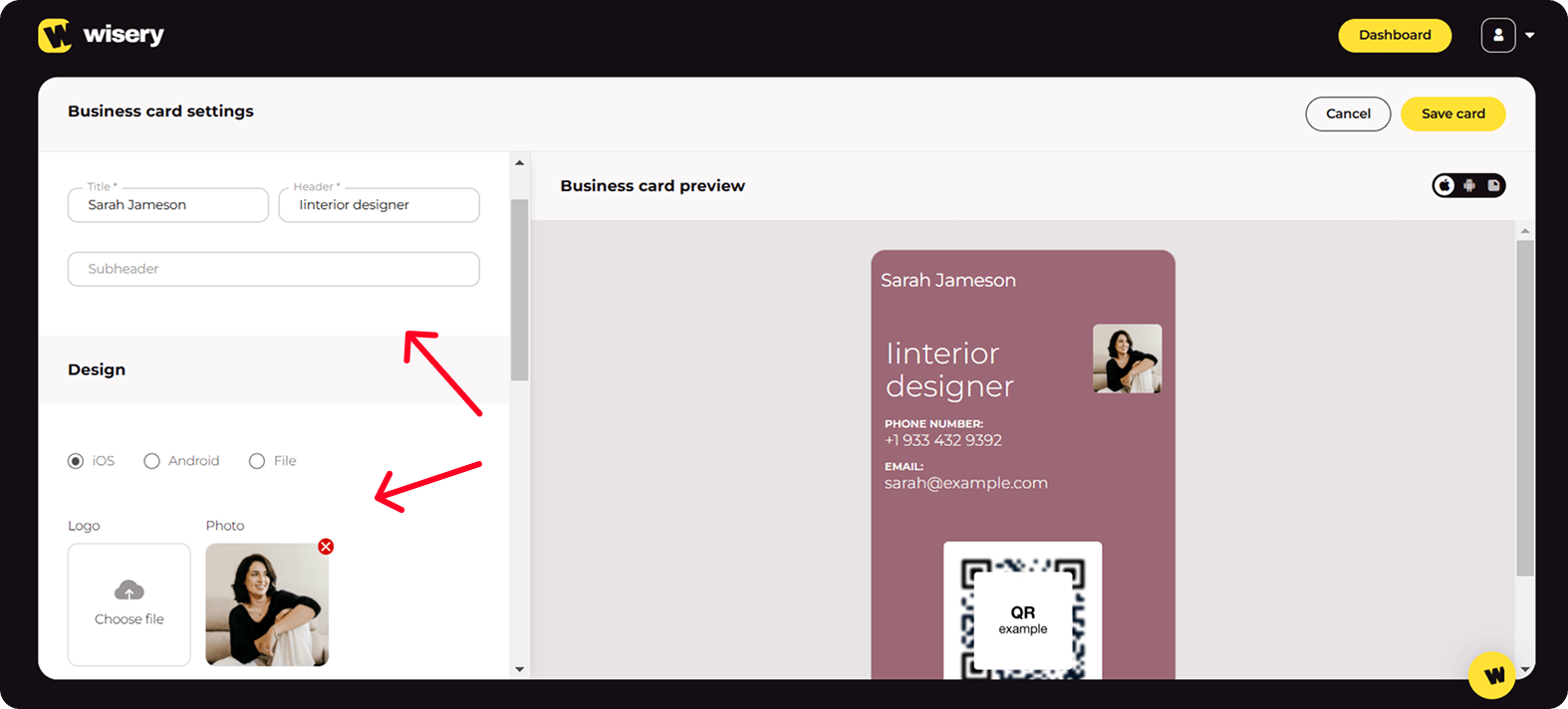
Use the available customization options to match your branding. Review the preview for readability, including the contrast between the background and text color.
Next, choose what happens when someone scans your QR code:
- Open your online profile: Let people explore your contact details and links before deciding how to connect.
- Add to contacts: Offer your contact information for the recipient to save on their phone. They may need to confirm the save.
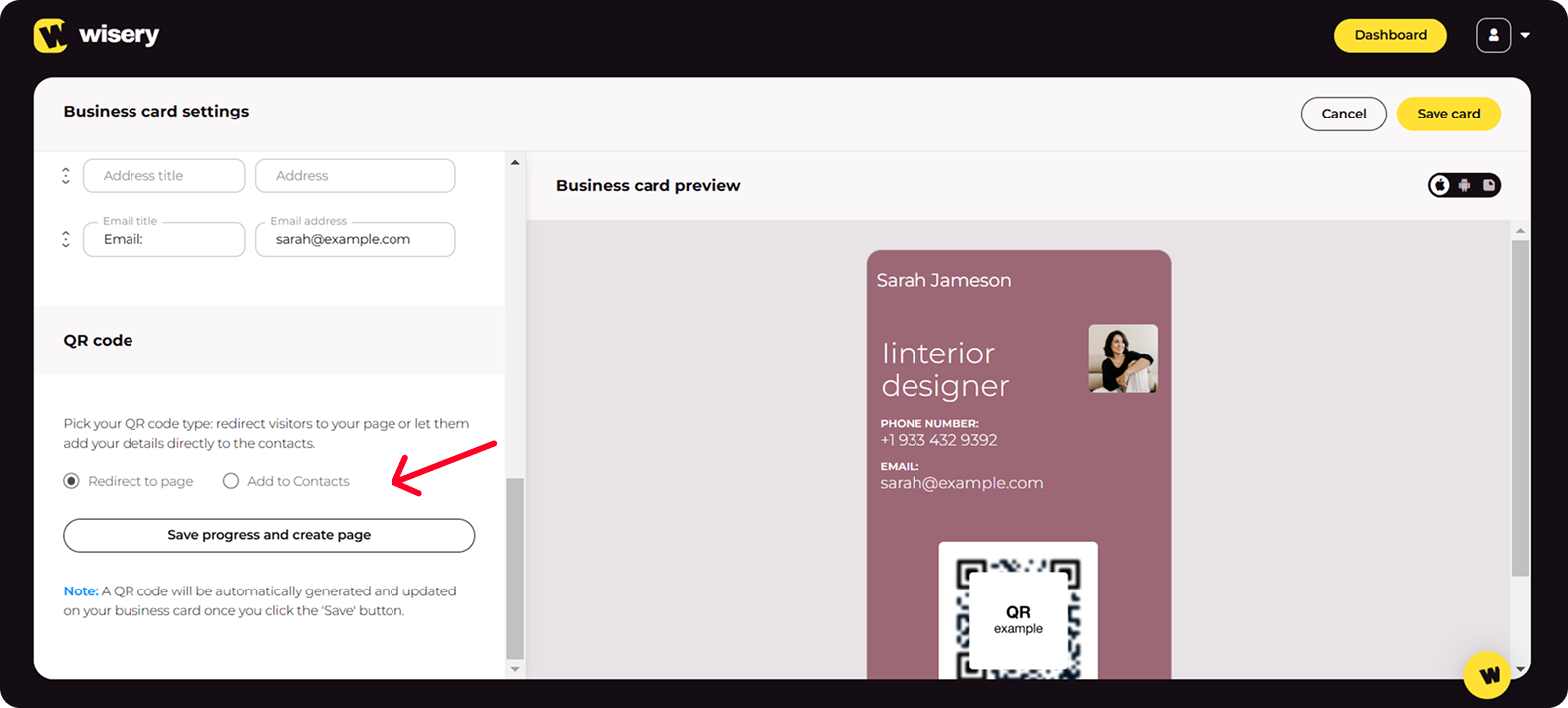
Save your changes before continuing.
Step 2: Generate Your Apple Wallet Pass
Open your card’s wallet options and select Apple Wallet. Wisery generates the compatible pass, so you don’t need to find a separate pass generator or hire a developer to create a pass.
Apple Wallet integration requires Wisery Pro. If you’re using the Free plan, upgrade to access this option or continue sharing your online card through its QR code or link.
Open the Wallet option on your iPhone. If you started on a computer, open the relevant card or pass link on your phone to finish adding it.
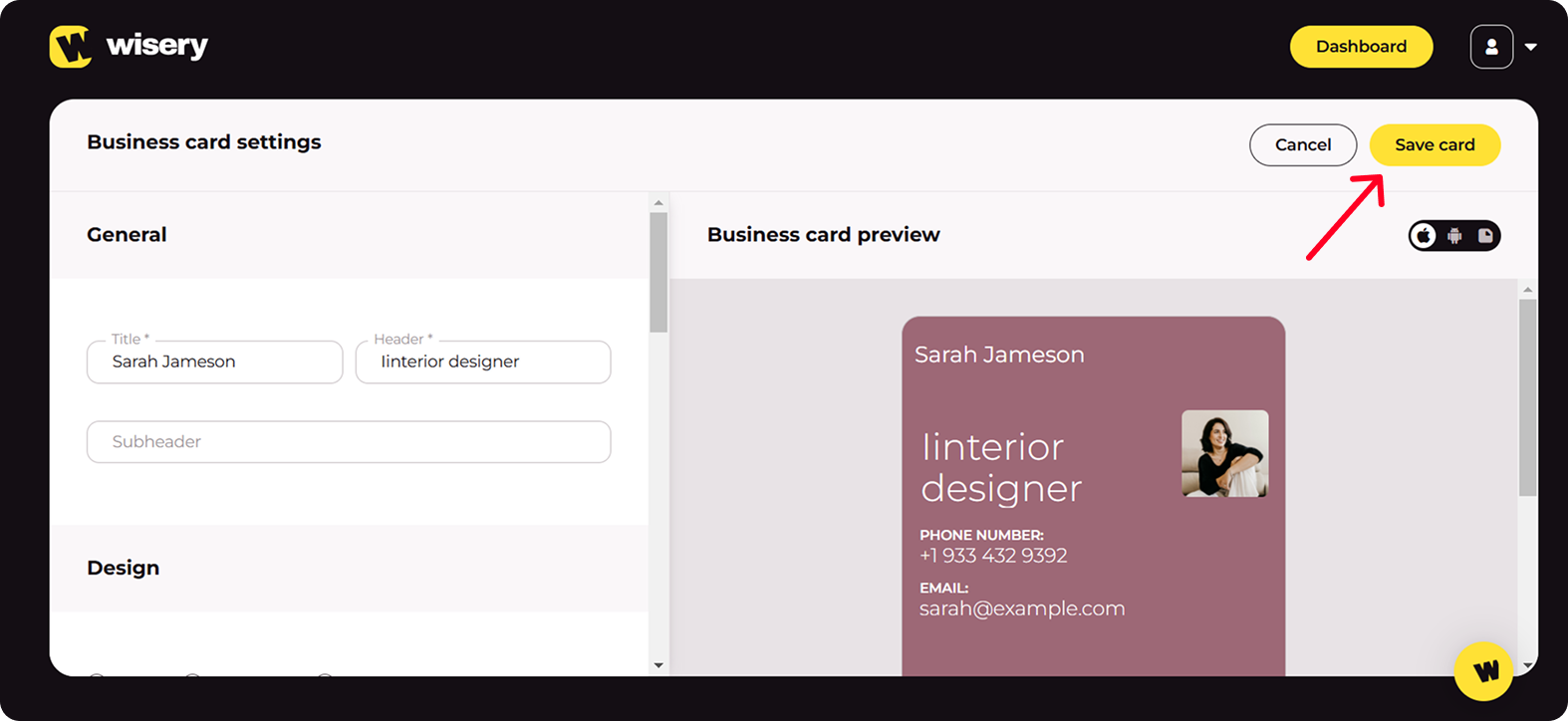
Step 3: Save Your Business Card to Apple Wallet
Tap Add to Apple Wallet to open the pass preview. Check your name, visible contact details, branding, and QR code. When the pass opens correctly, tap Add in the upper-right corner to add the card.
Once the pass is saved to Apple Wallet, open the Wallet app and select it. Test the QR code with another phone to confirm that your card works as intended.
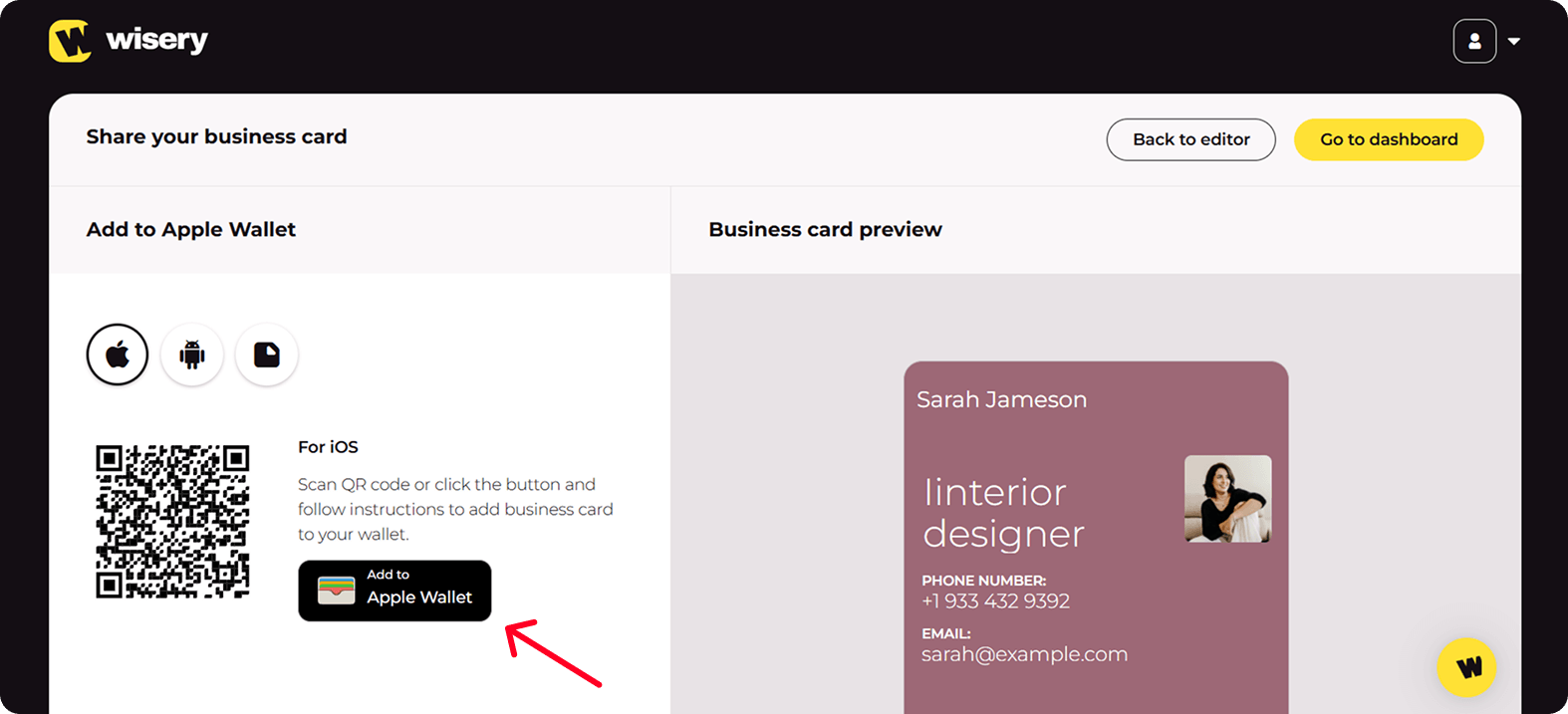
Now your card is added to your iPhone, and you can open your Apple Wallet whenever you want easy, hassle-free access to share your contact info with a new contact. By doing this, you’re also future-proofing networking efforts, ensuring you’re prepared for seamless connections.
Why Use Apple Wallet for Your Digital Business Card?
Apple Wallet gives iPhone users a convenient place to keep their business card alongside other passes, such as event tickets. Its practical benefits include:
- Quick access on your iPhone. Open your card from Wallet when you meet someone at a meeting, conference, or trade show.
- A QR code ready to share. Show the QR code instead of asking someone to type your contact details.
- No extra app for the recipient. People can scan your code with a compatible smartphone camera and open your profile in a browser.
- Access to your current online profile. When your QR code links to the same active Wisery profile, visitors can see the details you’ve most recently saved there.
Your online business card stays useful after the first introduction: recipients can return to its link when they need your contact information or services.
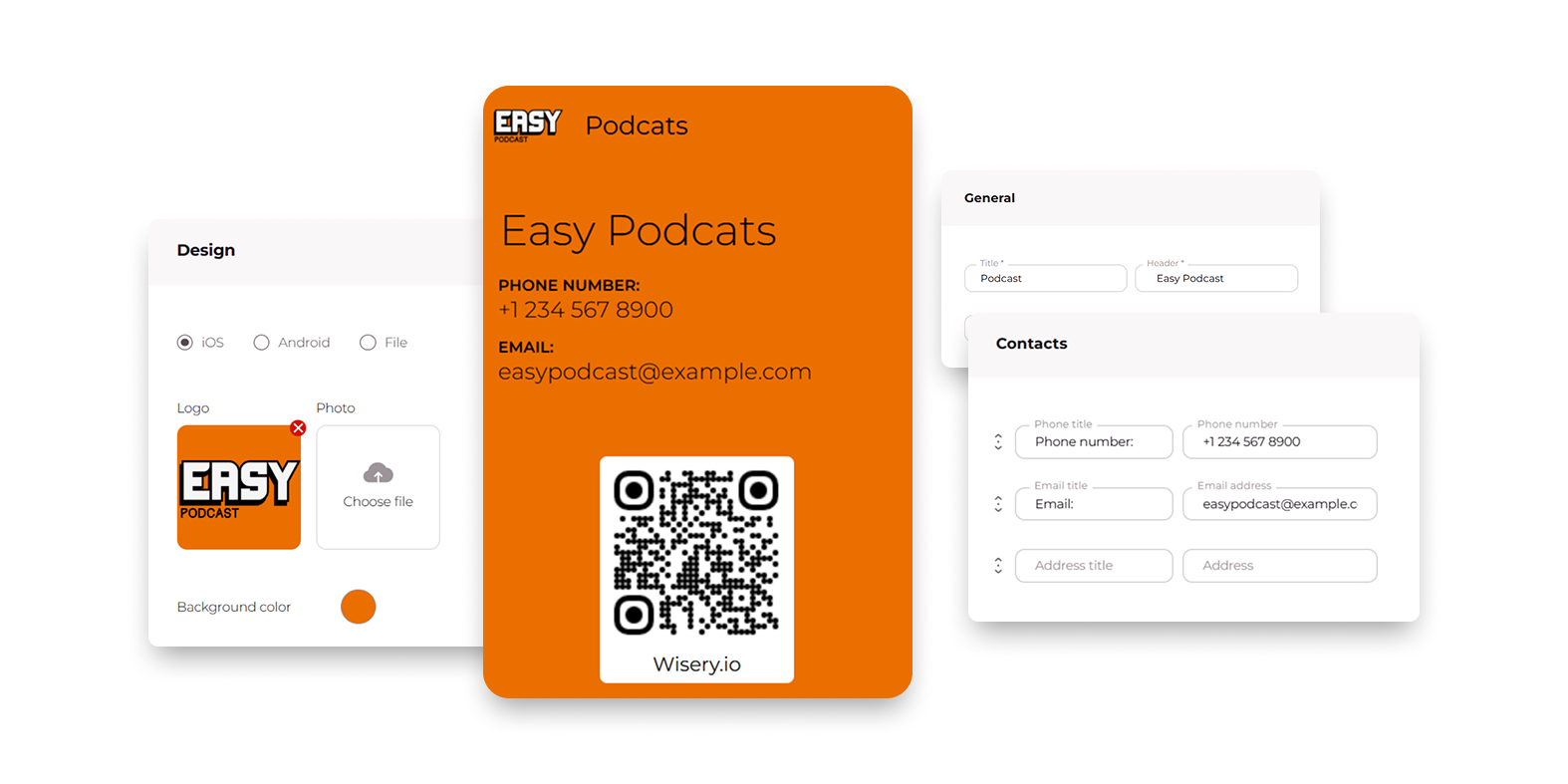
Requirements for Adding an Apple Wallet Business Card
Before you begin, check these three requirements:
|
Requirement |
What you need |
|
Compatible device |
An iPhone with Apple Wallet and a supported version of iOS. Install the latest version available for your device when troubleshooting compatibility. |
|
Supported Wallet pass |
A compatible Apple Wallet pass, commonly distributed as a .pkpass file. A PDF, card image, or .vcf contact file serves a different purpose and cannot replace the provider’s Wallet pass. |
|
Wallet-enabled card provider |
A service that generates a compatible business card pass. In Wisery, Apple Wallet integration is included in Pro. |
A pass file contains the information and assets Wallet needs to display your card. You don’t need to build or edit this file yourself when using Wisery’s integration.
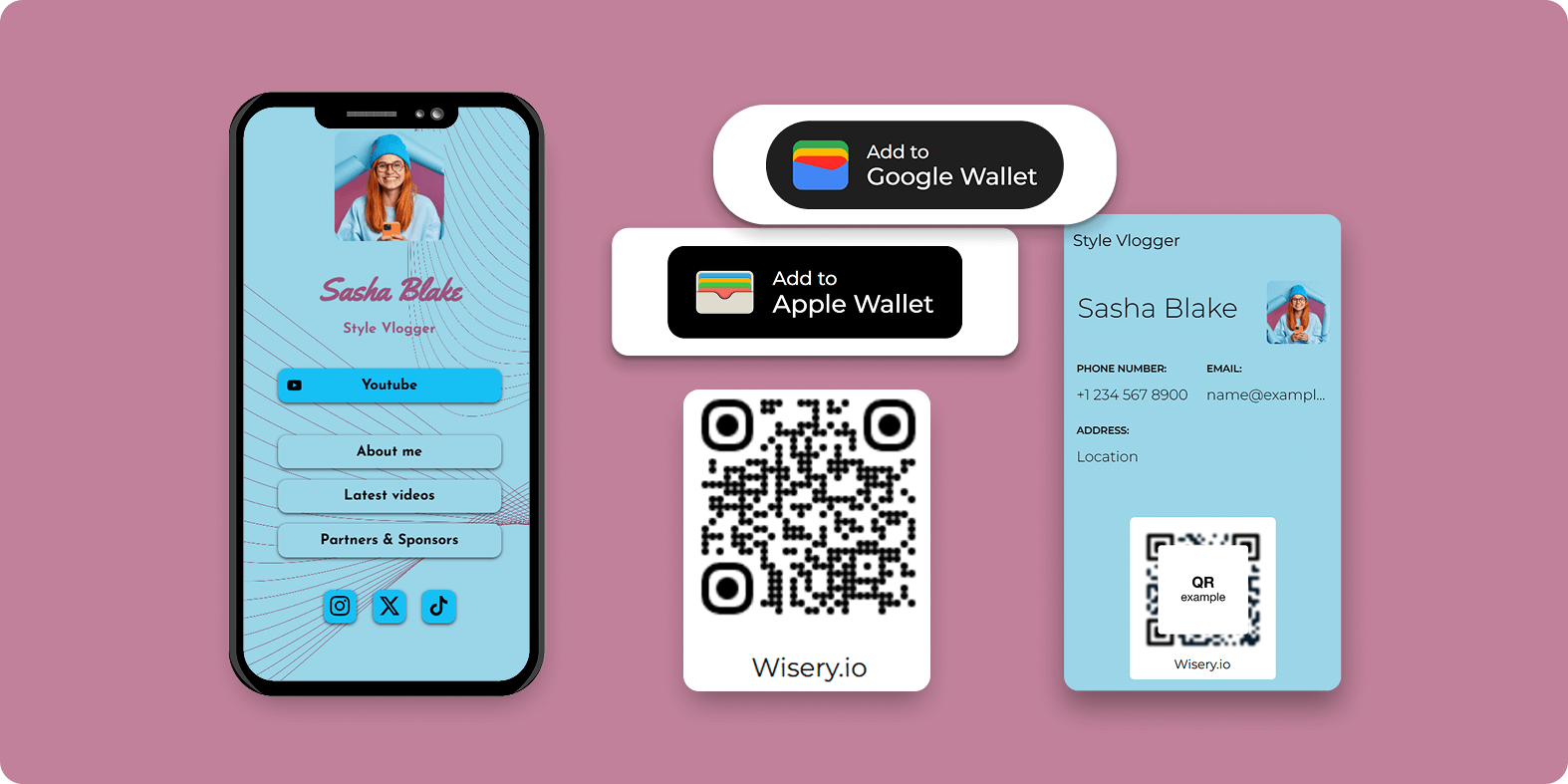
Apple Wallet is for Apple devices. Android users can use Wisery’s Google Wallet option with Pro, or receive your online card through its QR code or link.
How to Share Your Business Card from Apple Wallet
Once your card is in Wallet, you can share your details by displaying its QR code. The recipient can use an iPhone or Android phone with a compatible camera or QR scanner.
- Open Apple Wallet on your iPhone.
- Select your Wisery digital business card.
- Show the QR code displayed on your card.
- Ask the recipient to scan it with their smartphone camera and open the result.
- Depending on your QR code settings, they can explore your digital profile or save your details to their contacts.
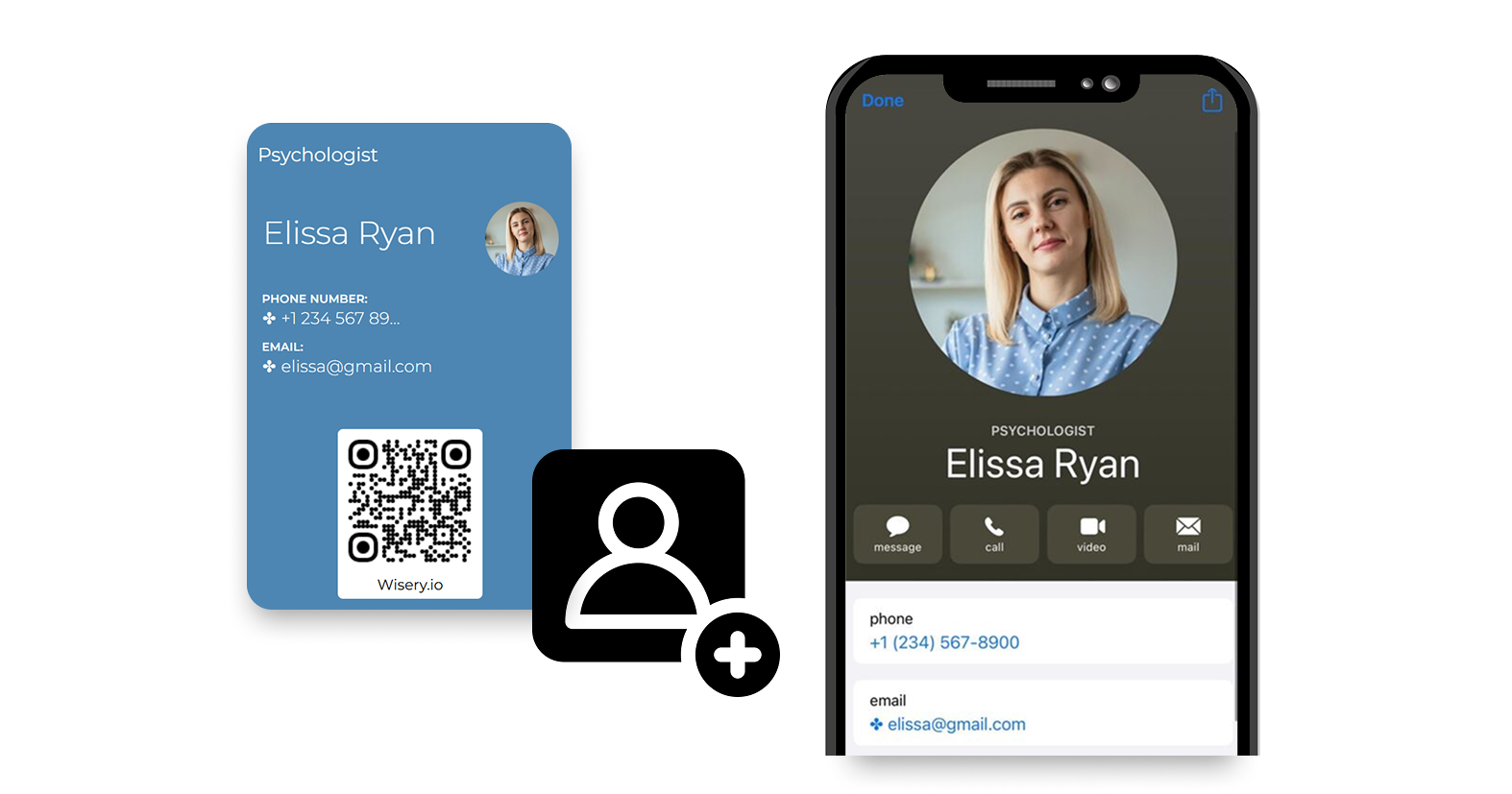
When someone scans your QR code, they don’t need to install Wisery. For other sharing methods, see our guide to sharing a digital business card.
Troubleshooting Common Issues
|
Problem |
What to do |
|
Add to Apple Wallet button is missing |
Check that your Wisery subscription includes Wallet integration and that you’ve opened the correct card. With another provider, confirm that it supports Apple Wallet passes. |
|
Apple Wallet pass won’t open |
Open the card or pass link directly on your iPhone. If it opens inside another app, try Safari in a new tab. Check your internet connection and generate the pass again if necessary. |
|
Business card doesn’t appear in Wallet |
Make sure you completed the preview by tapping Add. Reopen Wallet and look through your passes. If needed, return to Wisery and repeat the process. |
|
QR code doesn’t work |
Check its destination URL, increase your screen brightness, and test the code on another device. Opening an online profile requires an internet connection on the recipient’s phone. |
|
Contact details are outdated |
Update and save your Wisery profile. Test the QR link, then separately check the information displayed on the Wallet pass. A contact already saved on another person’s phone may still contain older details. |
|
Only a .vcf file is available |
A vCard is intended for a Contacts app. Return to your provider’s Apple Wallet option to generate a compatible pass instead. |
If the issue continues, contact Wisery support with your device model, iOS version, and a description of what happens.
Updating or Replacing Your Digital Card
If you change your number, role, or company, update your information in Wisery first:
- Open your Wisery account and select the relevant profile or card.
- Edit your contact details or links.
- Save your changes.
- Scan your existing QR code with another device and check the destination information.
- Open Apple Wallet and check the details displayed on the pass itself.
Wisery supports updates to online cards and Wallet passes. For passes that support automatic updates, check that Automatic Updates is enabled in the pass settings, if available, and allow an internet connection for updates to arrive.
If the Wallet information remains outdated, reopen the card’s Apple Wallet option in Wisery and follow the prompts to refresh or add the current pass. Confirm the replacement works before removing an older copy.
Keeping the same active profile URL means your card stays accessible through the existing QR link. However, changes to your online profile do not automatically rewrite contact details someone previously saved in their phone’s address book.
Create Your Apple Wallet Business Card with Wisery
Create your digital business card in Wisery, add your contact information and relevant links, and customize its appearance. Start with the Free plan for QR code and link sharing, or choose Pro to add your card to Apple Wallet.
Create Your Digital Business Card

FAQ

Danylo is a marketing professional with a strong interest in developing effective, results-driven strategies for modern businesses. As a Marketing Manager at Wisery, he focuses on improving communication, strengthening brand presence, and optimizing digital channels such as email marketing and customer engagement. With a practical, hands-on approach, he is passionate about turning complex marketing concepts into clear, actionable insights that businesses can easily apply.