You can share a digital business card by showing a QR code, tapping an NFC card, sending your card link via SMS, email, WhatsApp, LinkedIn, or social media, adding it to your email signature, or saving it to Apple Wallet or Google Wallet.
For in-person networking, QR codes and NFC cards are usually the fastest ways to help people connect. For remote follow-ups, sharing your card link through email, SMS, LinkedIn, or your email signature makes it easy to stay in touch. With Wisery, you can create a free digital card and share your contact details, professional information, and key links from one profile.
The Best Way to Share Your Digital Business Card for Every Situation
There’s no single best way to share your card. The right method depends on where you’re connecting and how quickly you need to exchange contact details. Use this table to find the best option for common networking situations.
| Situation | Best method | Why |
| Networking event | QR code | Fast to scan and works without exchanging phone numbers first. |
| Face-to-face meeting | NFC | A quick tap can open your card without typing or scanning. |
| Someone asks for your details by text | SMS | Send your card link directly in a message. |
| Remote follow-up | Easy to include your card link alongside your follow-up message. | |
| Connecting on LinkedIn | Share your card directly while you’re already making a professional connection. | |
| Messaging someone online | WhatsApp or other messaging apps | Lets you send your card link directly in the conversation. |
| Sharing with iPhone users | Apple Wallet | Keeps your card easily accessible on your phone for quick sharing. |
| Sharing with Android users | Google Wallet | Keeps your card available on your device when you need it. |
| Adding your card to every email | Email signature | Automatically includes your card link in emails you send. |
Send a Digital Business Card Using Google or Apple Wallet
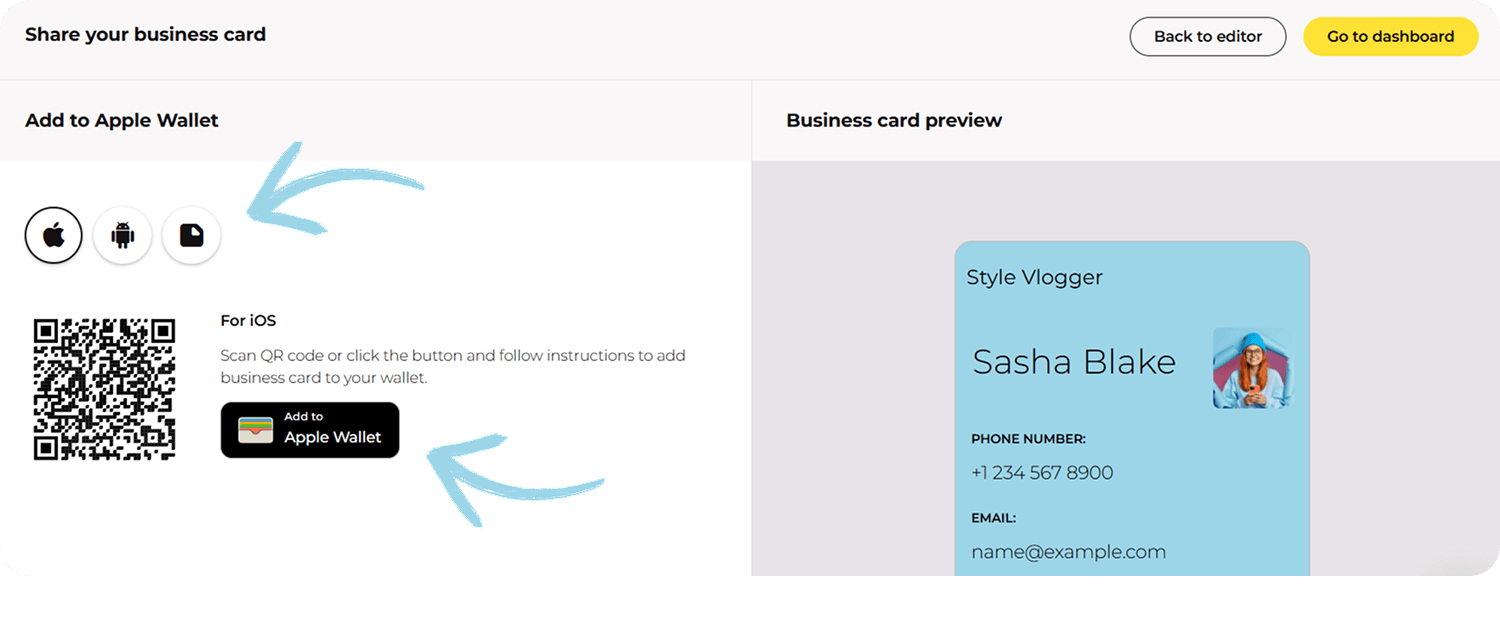
Here’s how to share your electronic business card using Apple or Google Wallet App – it’s simple!
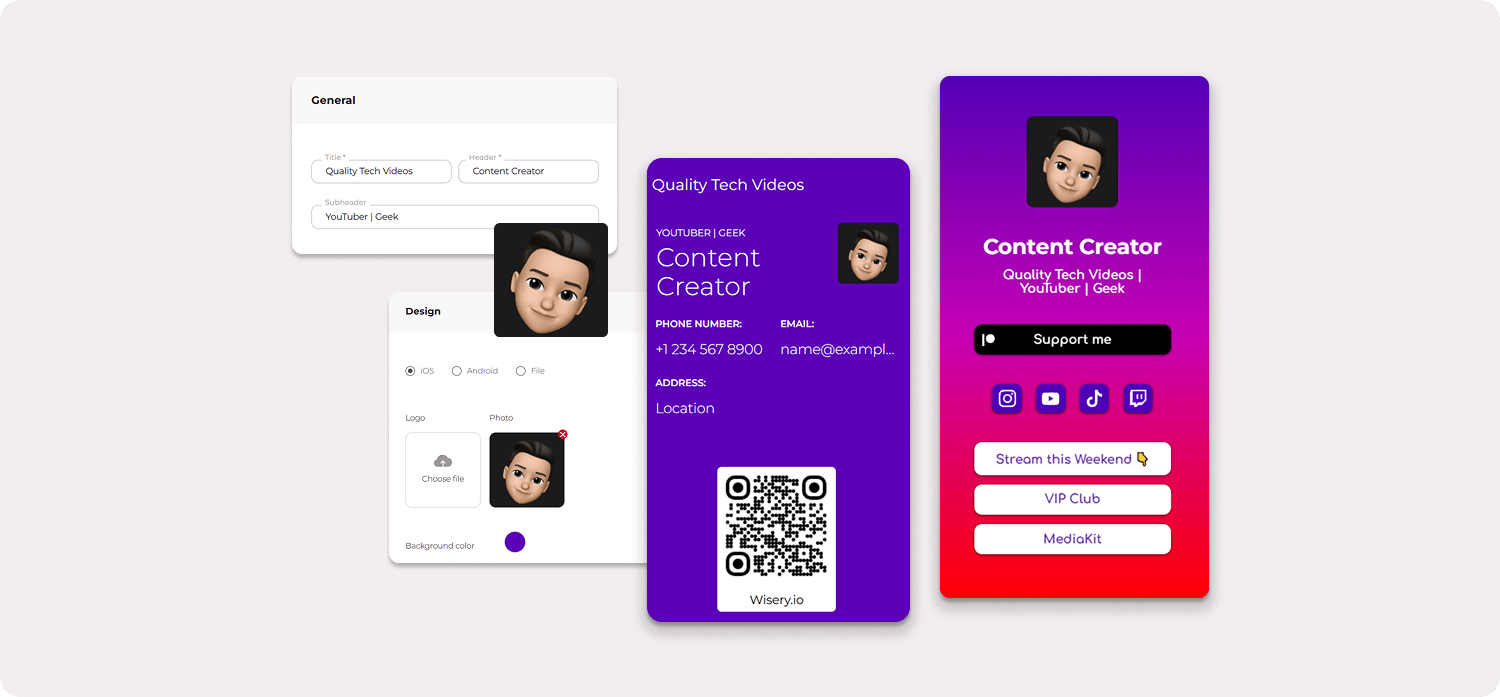
First, create your digital card. You can design one with Wisery, customize your virtual background, add all your contact details, and make it beautiful and effective.
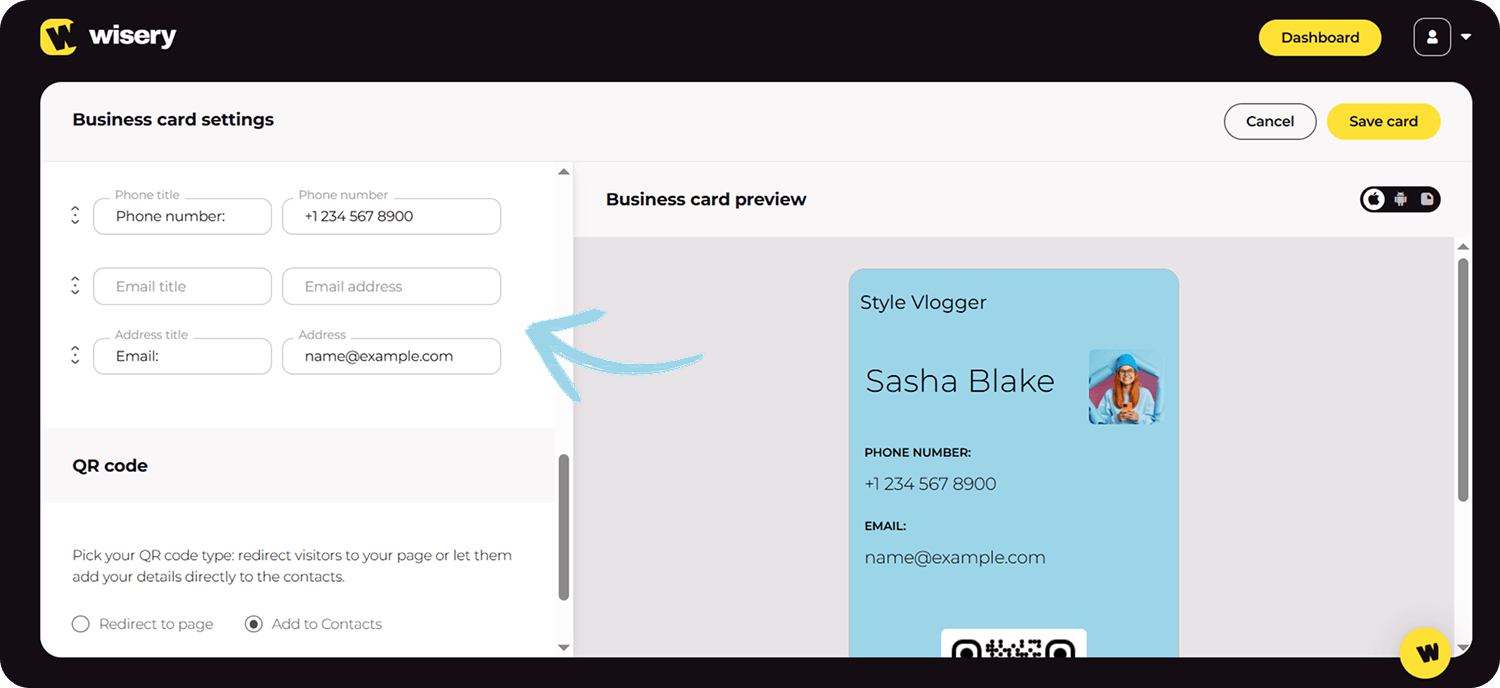
Next, select the device type to which you want to add your card. If you’re using an iPhone, choose Apple Wallet; if you have an Android phone, choose Google Wallet.
Then, just click the button to add a card to Apple Wallet Pass, and your card will be alive and ready to share. This method is perfect for those who want their contact info accessible at all times and want to make the most of networking opportunities.
Share a Digital Business Card via Airdrop or Bluetooth
Here’s how to share your card via Airdrop or Bluetooth:
1. First, save your digital card on your phone.
2. Next, click the share button on your card. This will give you options like Airdrop for iPhone users or Bluetooth for Android and iPhone.
3. Choose the person you want to share with. For iPhone, simply select their device via Airdrop. For Android, connect via Bluetooth.
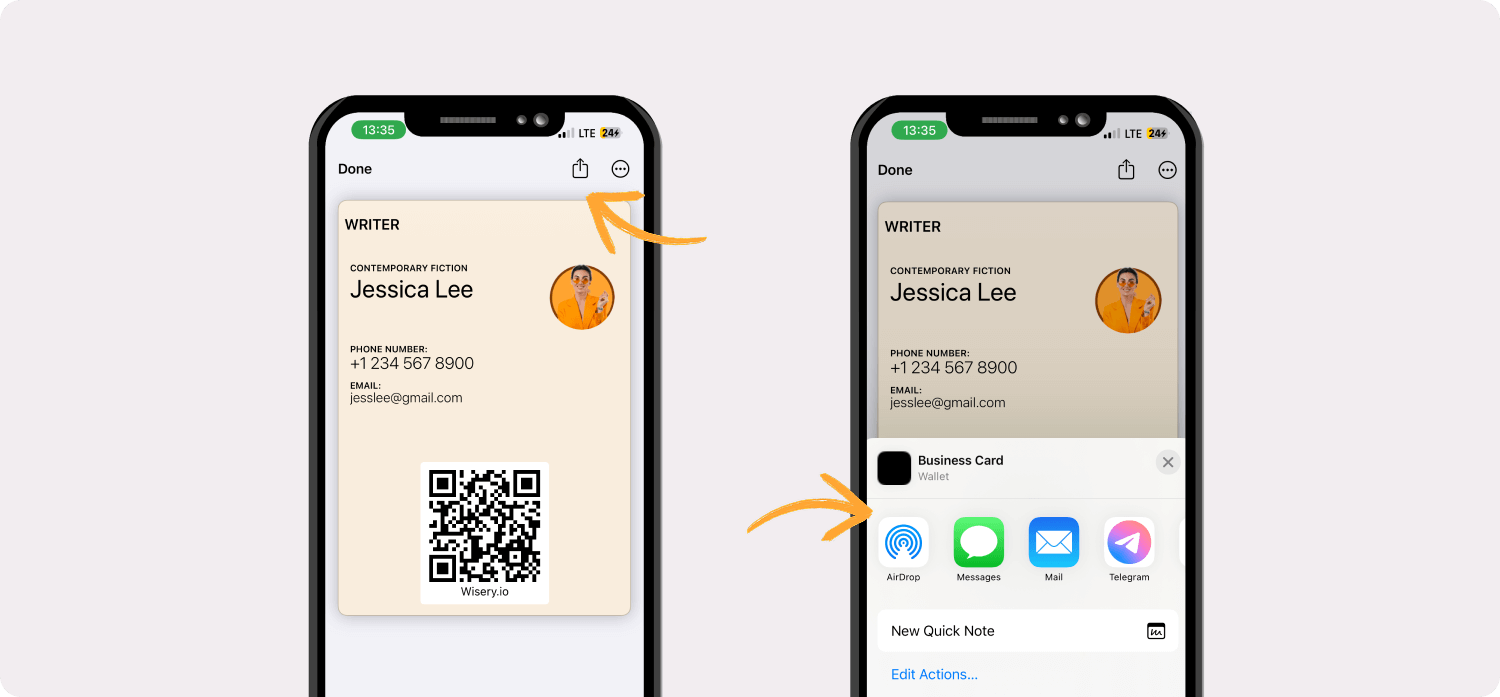
This method makes sending your contact details directly to an Android device or iPhone super easy, helping people connect quickly during in-person meetings.
How to Share a Digital Business Card via QR Codes
Here’s how to send a digital card via QR code:
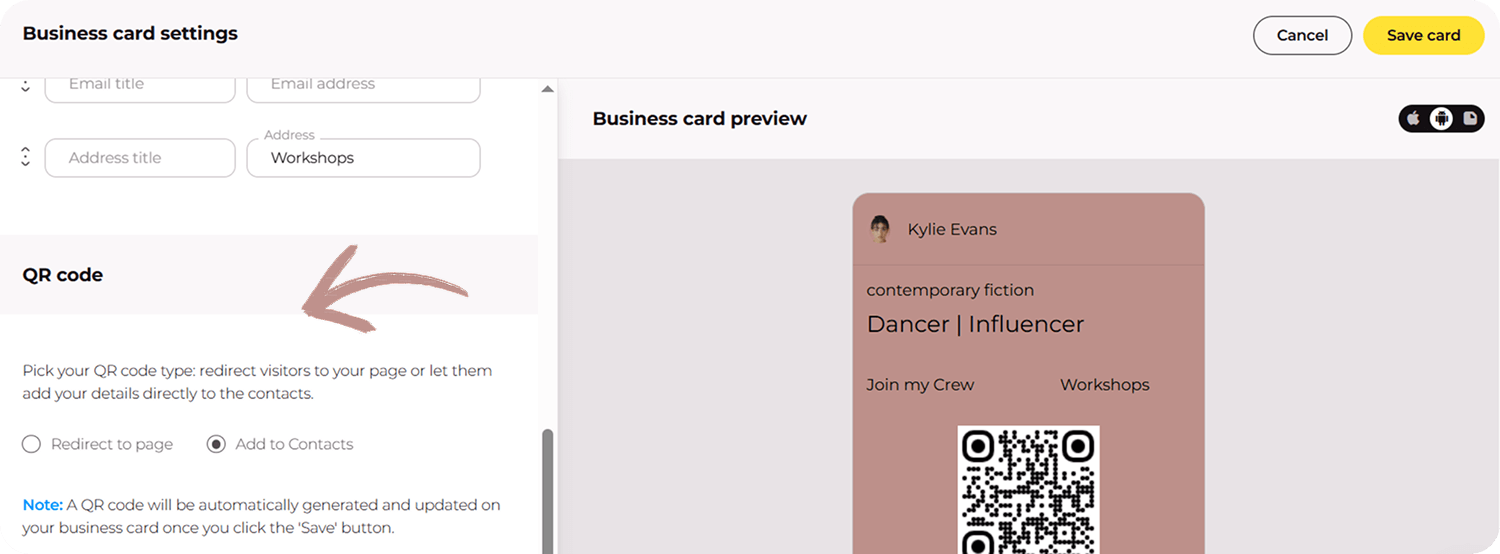
1. Create a QR code with a tool like Wisery.
2. You can save the QR code as a high quality image or file on your phone. Wisery offers multimedia options, so you can choose what works best for you.
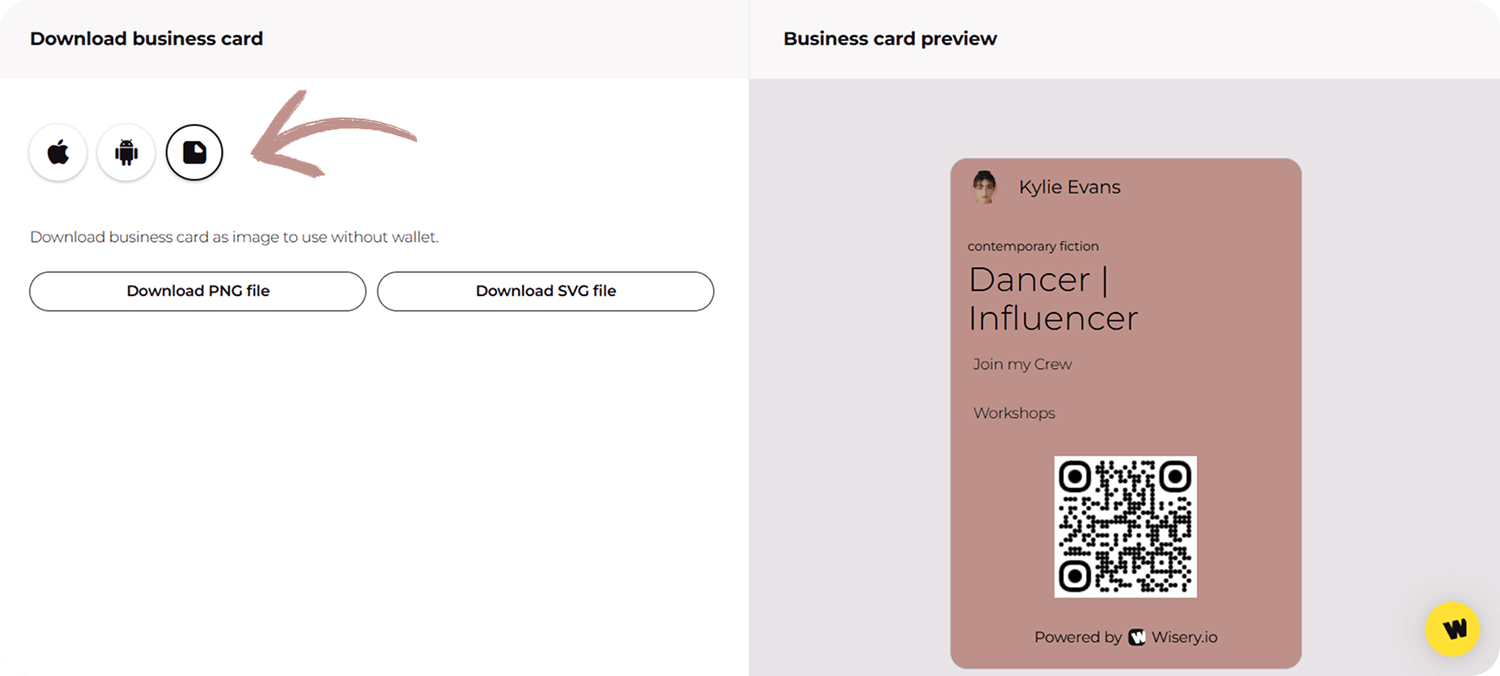
3. Just hand over the QR code for others to scan at a networking event.
Once they scan the QR code, they’ll be taken to your link-in-bio page with all your necessary info. Depending on the settings you chose while creating your card, your contact can be added directly to their digital address book.
Send a Digital Business Card via Social Media (WhatsApp, Facebook, Instagram, LinkedIn, Telegram)
Here’s how to send your electronic business card via social media:
Once your card is saved on your phone, sharing it is easy. Simply open the saved file, tap the share button, and send the link to your contacts via social media platforms, email, or messaging apps. It’s a quick way to stay connected!
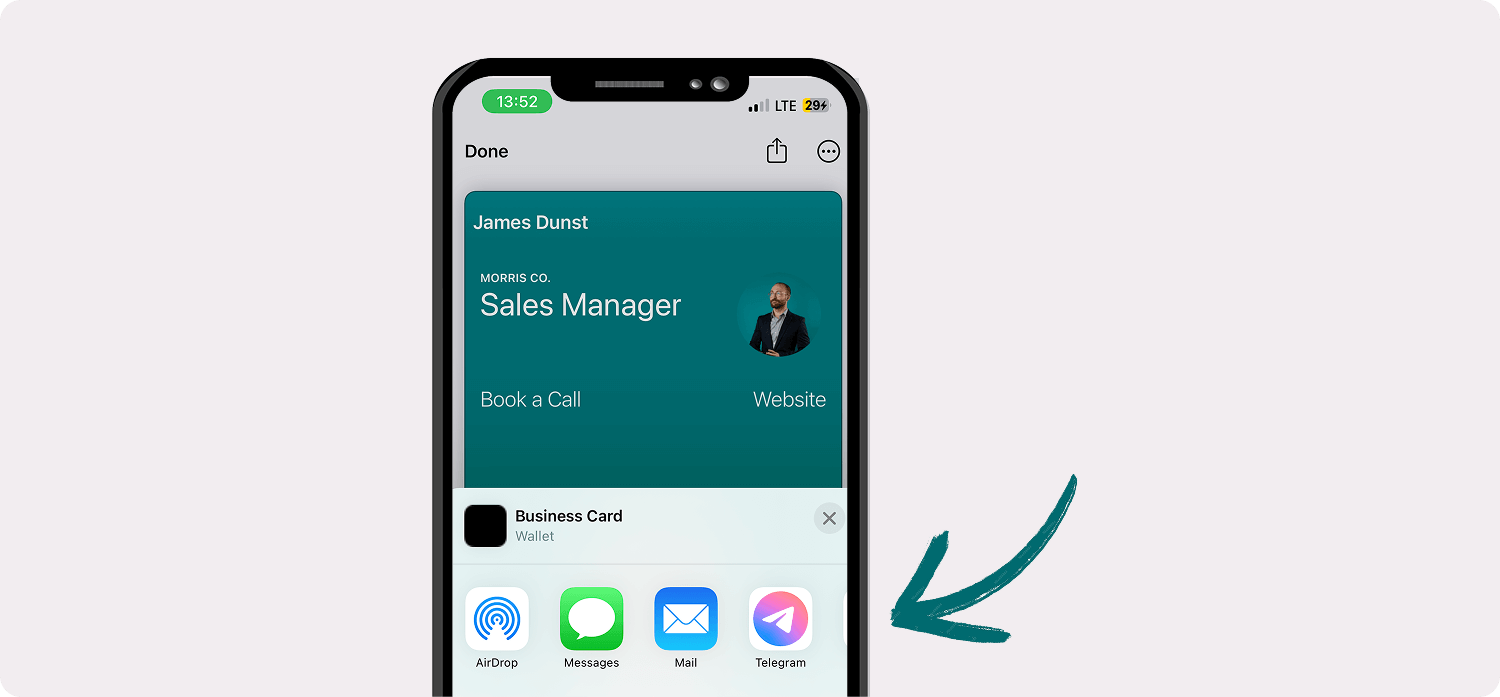
Imagine you’re attending an online event and want to connect with someone immediately. You can quickly send your card through WhatsApp – there’s no need for back-and-forth texting!
Or let’s say you’re a freelancer – send your digital card through Upwork DM to potential clients or business partners. Need to share your details with a professional network? LinkedIn is a perfect spot to send your card for a quick connection. It’s all about making those moments easier and faster!
Need some inspo? Check out digital business card examples. It’s all about making those moments easier and faster!
How to Send a Digital Business Card via Text Message (SMS)
Here’s how to share digital card via text message (SMS):
1. Customize your card to make sure it includes all the essential details.
2. Open your messaging platform or instant messaging app and choose a contact from your contact list.
3. You can send your card as a URL, image, or other file option – just paste the card URL, attach the image, or select the file and hit send.
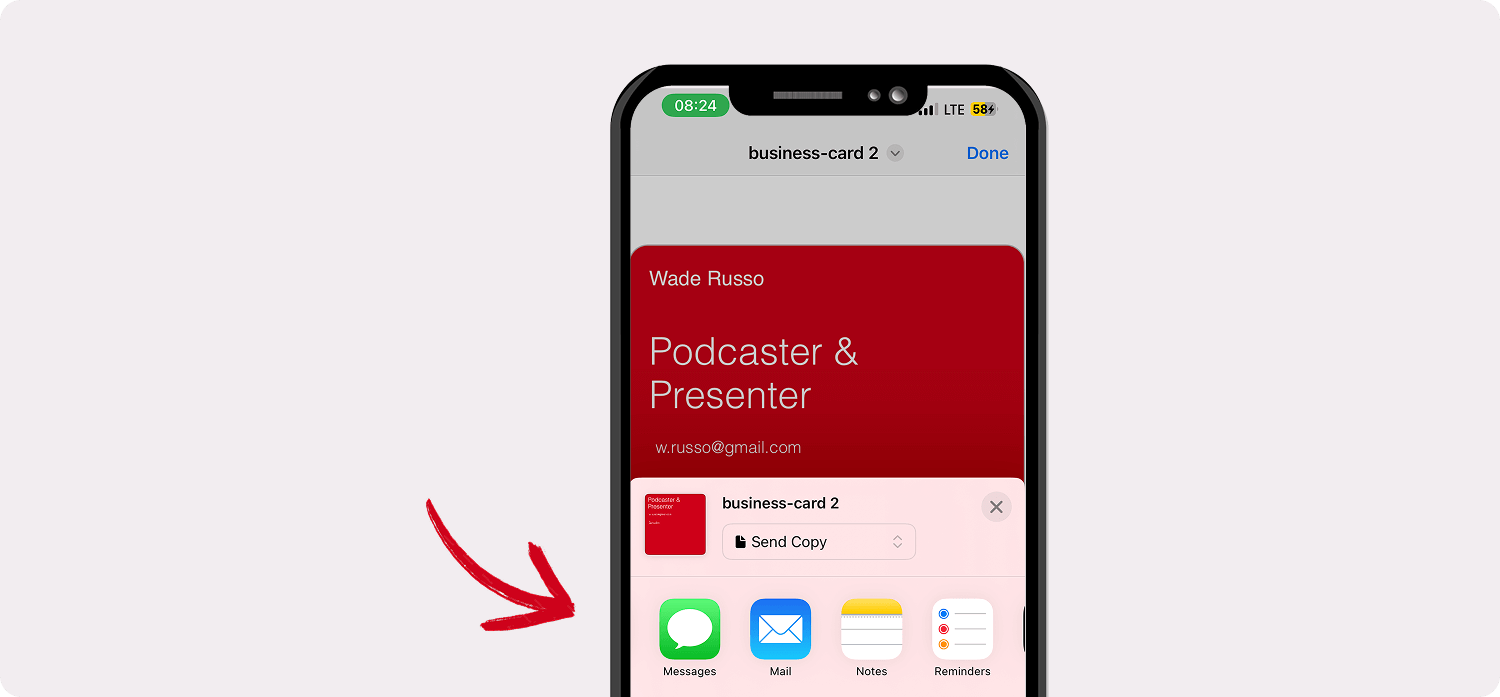
That’s it! This is a quick and direct way that allows you to share info, especially when someone isn’t active on social media. Got a new client but no time for emails? Just send your card via SMS for an instant connection. Meeting someone at an event? A quick text lets them save your details with one tap.
How to Share Digital Business Card via Email Signature
Here’s how to send digital card via email signature:
1. Open your signature editor in your email settings. Create an email signature by typing your name, job title, and other contact fields.
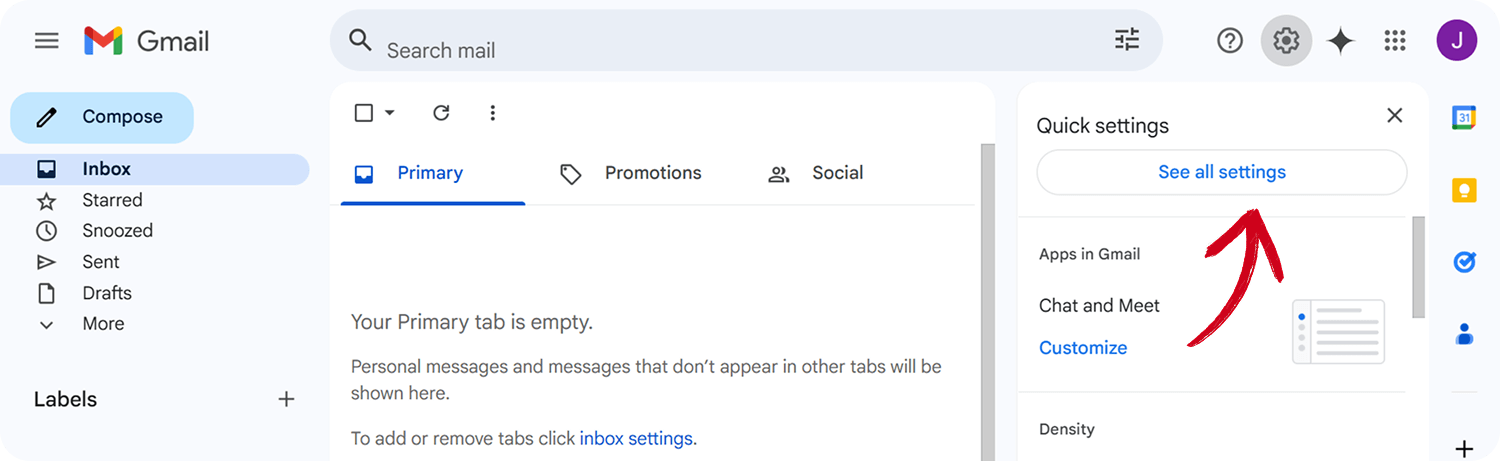
2. Add your card by inserting a link with a clear CTA like “My Digital Business Card”. Or, if you prefer, you can include a QR code icon in your signature for easy scanning.
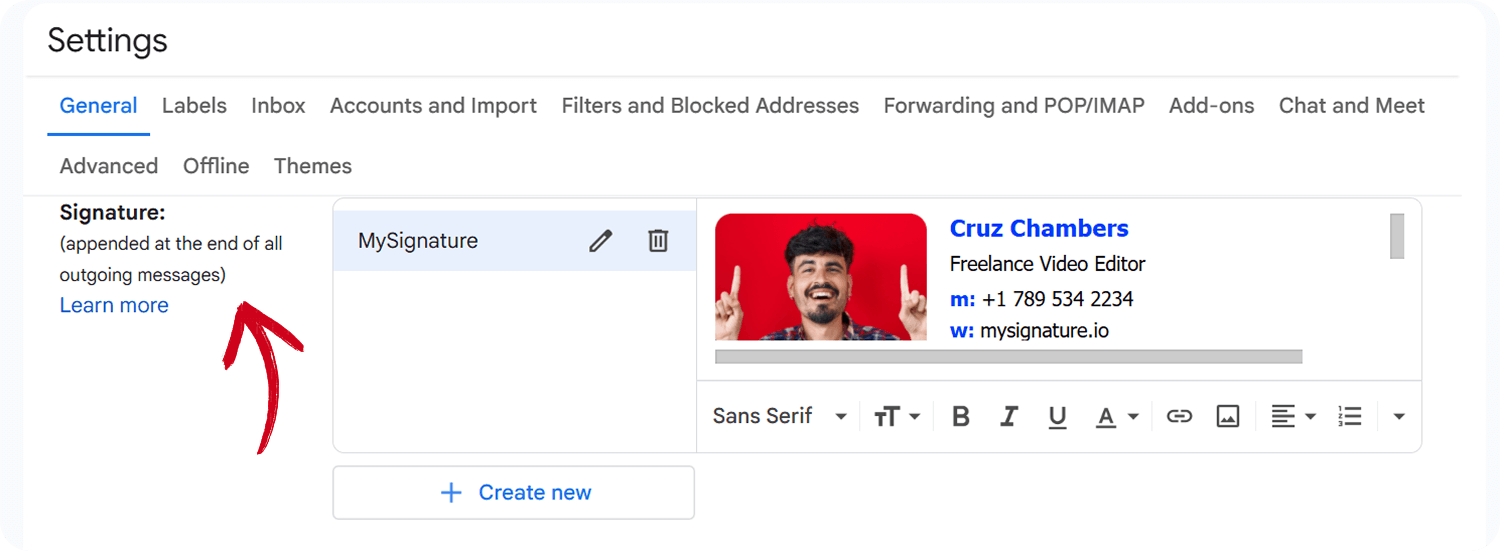
3. Save your custom signature, and now, every email you send will automatically distribute your personal contact details.
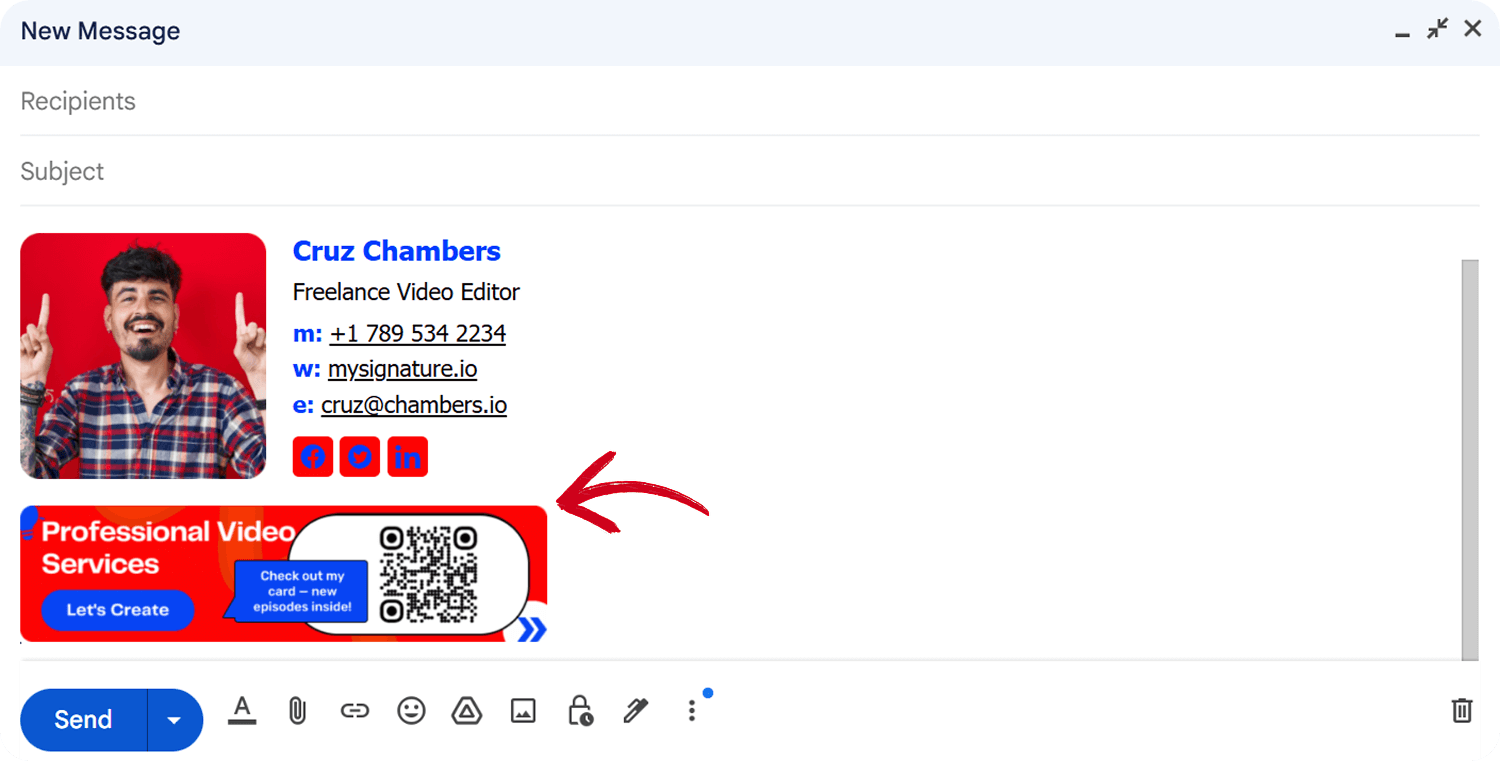
This is perfect for keeping company data secure while ensuring your business card reaches every recipient effortlessly. Whether you’re a company cardholder or a freelancer, your email signature becomes a built-in networking tool.
Sending proposals? Following up with a client? Now, your card is in your email – ready to be saved in just one click or scan!
Share a Digital Business Card via NFC Technology
NFC (Near Field Communication) makes sharing your electronic business card fast and seamless – just a tap and your contact info appears on their screen! Here’s how to do it right:
- Check NFC Compatibility – The majority of smartphones today support NFC, but it’s always good to double-check.
- Enable NFC – On an iPhone, NFC is always on. For Android users, go to Settings > Connections > NFC & Payments and switch it on.
- Tap in the Right Spot
For iPhones, tap the top back part of the phone against your NFC product (card, sticker, or phone tag).
For Android, tap the middle back part of the phone.
- Hold Steady – It’s more of a brief hold than a tap. Keep the mobile device close to your NFC product and wait until the link appears.
- Make Sure the Phone is Unlocked – NFC won’t work on a locked phone.
NFC works the same way as contactless payments (Apple Pay, Google Pay, credit/debit cards). It’s perfect for quick exchanges during meetings, events, or digital networking. No typing, no scanning – just a smooth instant connection.
Unfortunately, Wisery doesn’t offer this option just yet – but we’re working on it! Stay tuned for updates.
Use Siri to Share a Digital Card
Siri makes networking effortless – no typing, no searching, just instant sharing. Here’s how to set it up:
- Save your digital card profile on mobile phones and set up a Siri shortcut for quick access.
- In your device settings, create a voice command like “Hey Siri, show my card.”
- When prompted, Siri will pull up your digital card, ready to be shared via text, email, or instant messaging apps.
- Need to exchange info quickly? Just say your command, and Siri does the rest – perfect for busy professionals or on-the-go meetings.
With this setup, you’ll never have to dig through your phone again when someone asks for your contact details!
Share a Virtual Business Card via Apple Watch
Your Apple Watch isn’t just for fitness tracking – it’s also a powerful networking tool. Here’s how to make card distribution effortless:
- Save Your Digital Card – Use a virtual business card app to store your card on your Apple Watch.
- Open the app on your watch and select your card when you need to share it.
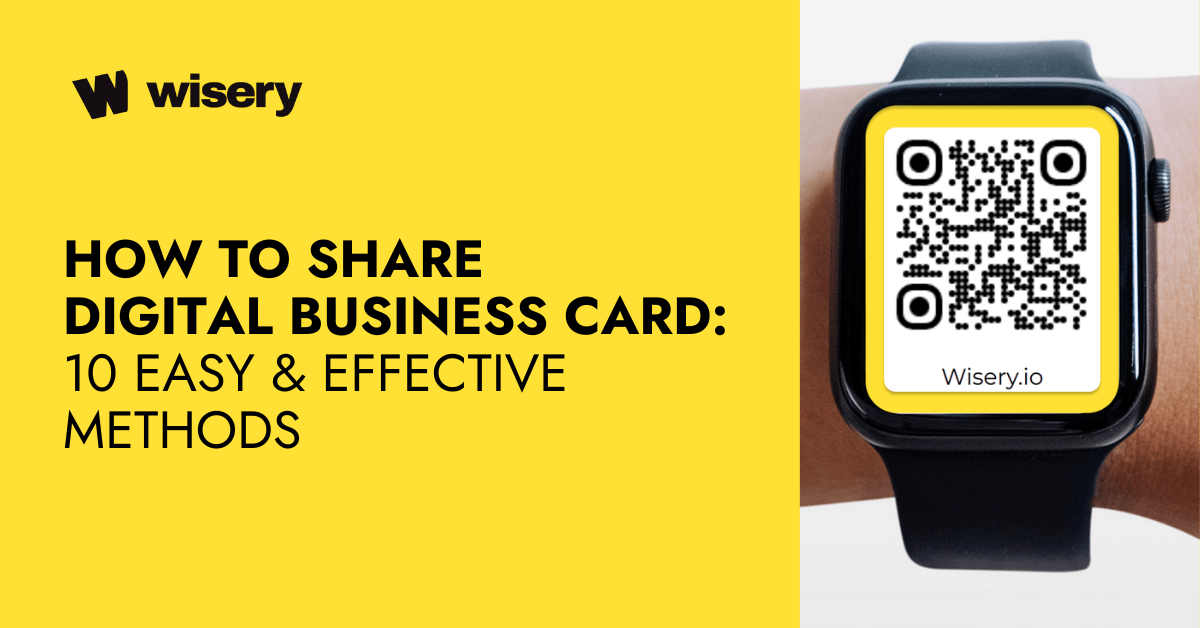
- Instead of handing out a traditional card, simply display the QR code on your watch. A relevant contact can scan it with their phone and instantly save your details.
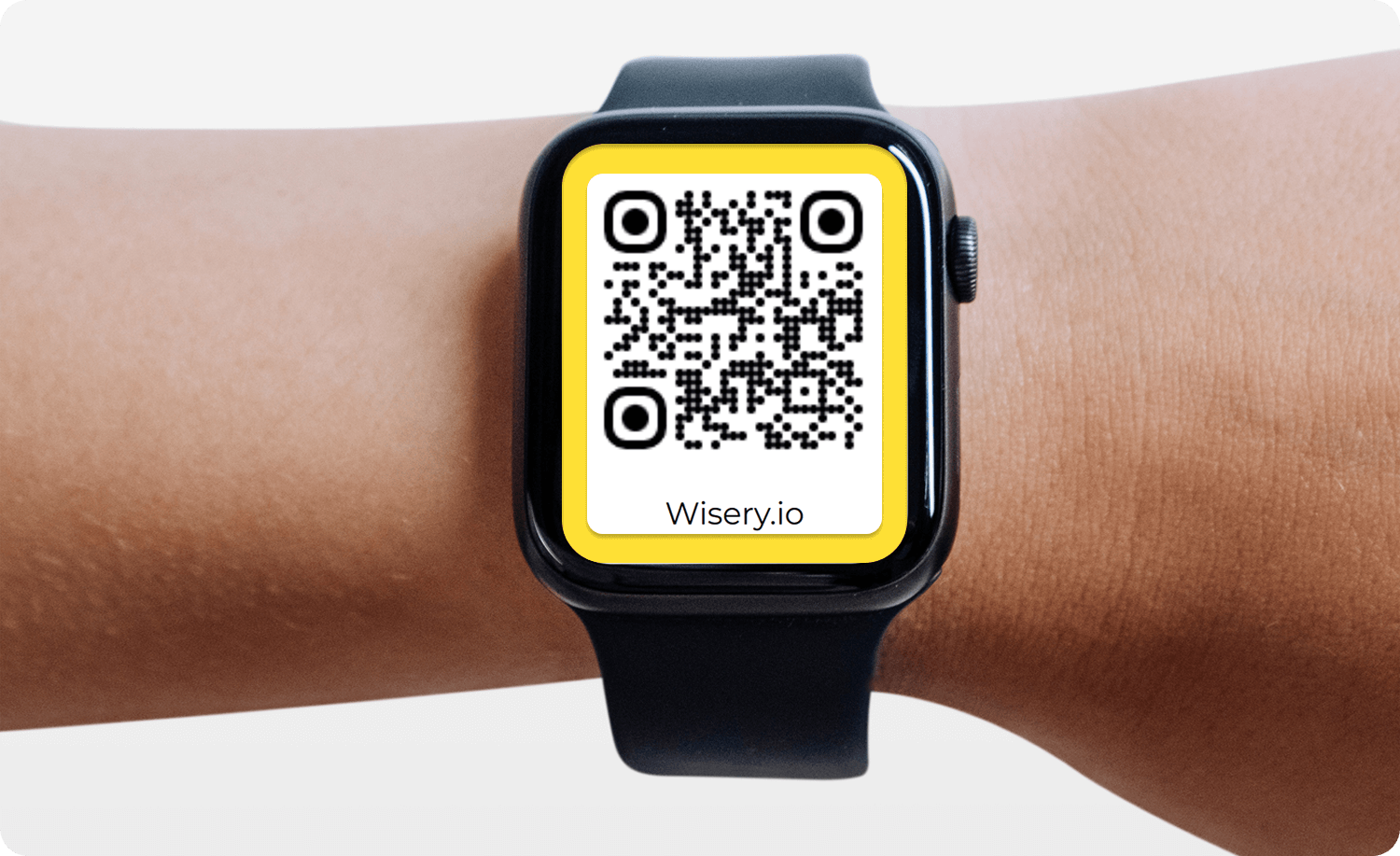
It’s an easy, hands-free way to network – no pockets, no paper, just a seamless connection.
Share a Digital Card via a Website or Widget
Share an Electronic Business Card via a Widget
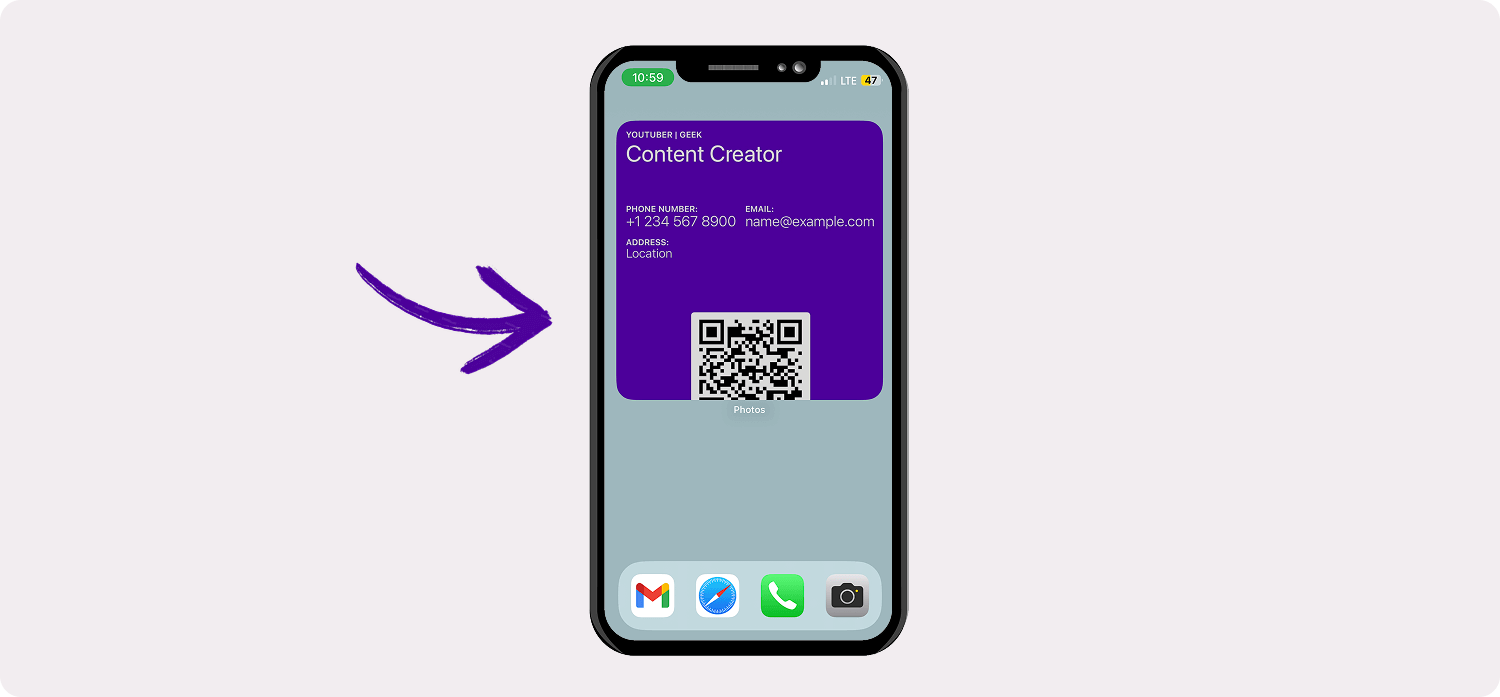
Quickly share your card by adding a widget with your Wisery Wallet or an image of your card. Here’s how:
- Press and hold a space on your home screen.
- Select “Widgets” from the menu.
- Choose the Wisery Wallet widget or upload an image of your digital card.
- Place the widget on your home screen for easy access.
- Tap the widget anytime to open and share your digital card instantly with potential customers.
Share an Electronic Business Card via the Website
- Copy your digital card’s unique link from Wisery.
- Add a button or section on your website.
- Insert the link so visitors can access your digital card.
- Use advanced features like QR codes or design customization.
- Test the setup to ensure it works without an internet connection.
Compare the Best Ways to Share Your Digital Card
Each sharing method has its strengths, from the speed of a QR scan to the convenience of adding a card to your email signature. Compare the options below to see which one fits your device, situation, and networking style best.
| Sharing method | Best for | Works across iPhone & Android? | Speed | Main advantage | Limitation |
| QR code | Networking events, in-person meetings | Yes | Fast | Easy to scan and share with many people | Requires the other person to scan the code |
| NFC | In-person networking, meetings | Yes | Instant | Share your card with a quick tap | Requires NFC-compatible hardware; not currently offered by Wisery |
| SMS | Direct follow-ups, new clients | Yes | Fast | Sends your card link directly to someone’s phone | Requires a phone number |
| Remote follow-ups, professional communication | Yes | Fast | Easy to share alongside a message or follow-up | Less convenient for quick face-to-face exchanges | |
| WhatsApp / messaging apps | Online events, casual or professional chats | Yes | Fast | Share your card directly in an existing conversation | Requires the recipient to use the messaging platform |
| Professional networking | Yes | Fast | Useful when connecting with professional contacts online | Requires a LinkedIn connection or conversation | |
| Social media | Online networking and communities | Yes | Fast | Easy to share your card across social platforms | Depends on the platform and audience |
| Email signature | Ongoing networking, client communication | Yes | Automatic | Your card can be included in every email you send | Mainly useful for email-based communication |
| Apple Wallet | iPhone users | No | Fast | Keeps your card readily accessible on your phone | Apple-only |
| Google Wallet | Android users | No | Fast | Keeps your card readily accessible on your phone | Android-only |
Grow Your Network with Wisery Digital Business Cards
So, now that you’ve got some ideas on how to share your card effectively, here’s the thing: you can use these methods separately, but the best results come from combining a few. Whether it’s a QR code at an event, sharing via social media, or adding a business card to your email signature – using a mix of these methods leaves a lasting impression.
Unlike a traditional business card, your digital card is always up-to-date and easy to share. Wisery lets you design your card exactly how you want and share it across different platforms. No more worrying about running out of cards or outdated contact information. Easily share contact information and keep your details up to date.
Want to stand out? Wisery offers the best digital card solutions, providing an efficient way to share and connect with people. It’s time to ditch the paper and step into the future of networking.
FAQ
What is the easiest way to share a digital business card?
A QR code or card link is usually the easiest option. Show your QR code for in-person networking, or send your link by text, email, or messaging app for remote connections.
Can I share a virtual business card with a QR code?
Yes. Create a QR code that links to your virtual business card, then show it on your phone or print it for networking events. People can scan it with their phone to open your card.
Can you send someone a digital card via text?
Yes. Copy your card link and paste it into an SMS or messaging app, then send it to the recipient. They can open the link and view your contact details.
Can I share a digital business card between Android and iPhone?
Yes. A card link or QR code works across Android and iPhone, so you can share your card regardless of which phone the other person uses.
Is QR code or NFC better for sharing a business card?
It depends on the situation. QR codes are more versatile because they work across phones without special hardware, while NFC is quicker for a tap-to-share exchange when compatible hardware is available.
Can I add a digital business card to my email signature?
Yes. Add your card link or a QR code to your email signature. Once added, recipients can open or scan your card from any email you send.
How to share a vCard from an iPhone?
To share a vCard on an iPhone, open the contact in the Contacts app, tap Share Contact, choose a sharing method, and send it.
A vCard is a contact file rather than an online profile. If you want to share a fuller profile, a QR code or card link is often simpler.
Can I share a digital business card without an app?
Yes. You can share it through a QR code or link without requiring the recipient to install an app. They can open the card directly in their phone’s browser.
Can someone save my digital card to contacts?
Yes. If your card supports contact saving, the recipient can add your details to their phone’s address book. They can also save your card link for later access.

Viktoriia is a Marketing Manager at Wisery. She drives the brand’s digital presence through strategic content creation. From crafting insightful articles to designing high-impact email campaigns, she ensures Wisery’s mission reaches a global audience. She loves how Wisery simplifies the contact routine for professionals. Viktoriia personally uses it at marketing conferences to turn quick introductions into lasting LinkedIn connections. Away from her desk, she recharges with a good book or her cats.