Best ways how to create a digital business card on iPhone
You can create a digital business card on iPhone in two main ways: using a digital business card app or creating a contact card with Apple Contacts. An app gives you more options for branding, contact sharing, QR codes, and lead capture, while Apple Contacts lets you create and share a simple digital contact using a vCard (VCF). Here’s how to create a digital business card on iPhone step by step.
How to Create a Digital Business Card on iPhone Without an App
If you don’t want to use a digital business card app, you can create a simple digital contact card directly on your iPhone using Apple Contacts and share it as a vCard (VCF). This option is free and works well if you only need basic contact details rather than a branded contact page or lead capture features.
- Open the Contacts app on your iPhone.
- Tap + in the top-right corner.
- Enter your name, phone number, email address, company, job title, website, and other contact details you want to share.
- Tap Done to save the contact.
- Open your saved contact and tap Share Contact.
- Choose AirDrop, Messages, Mail, or another available sharing option.
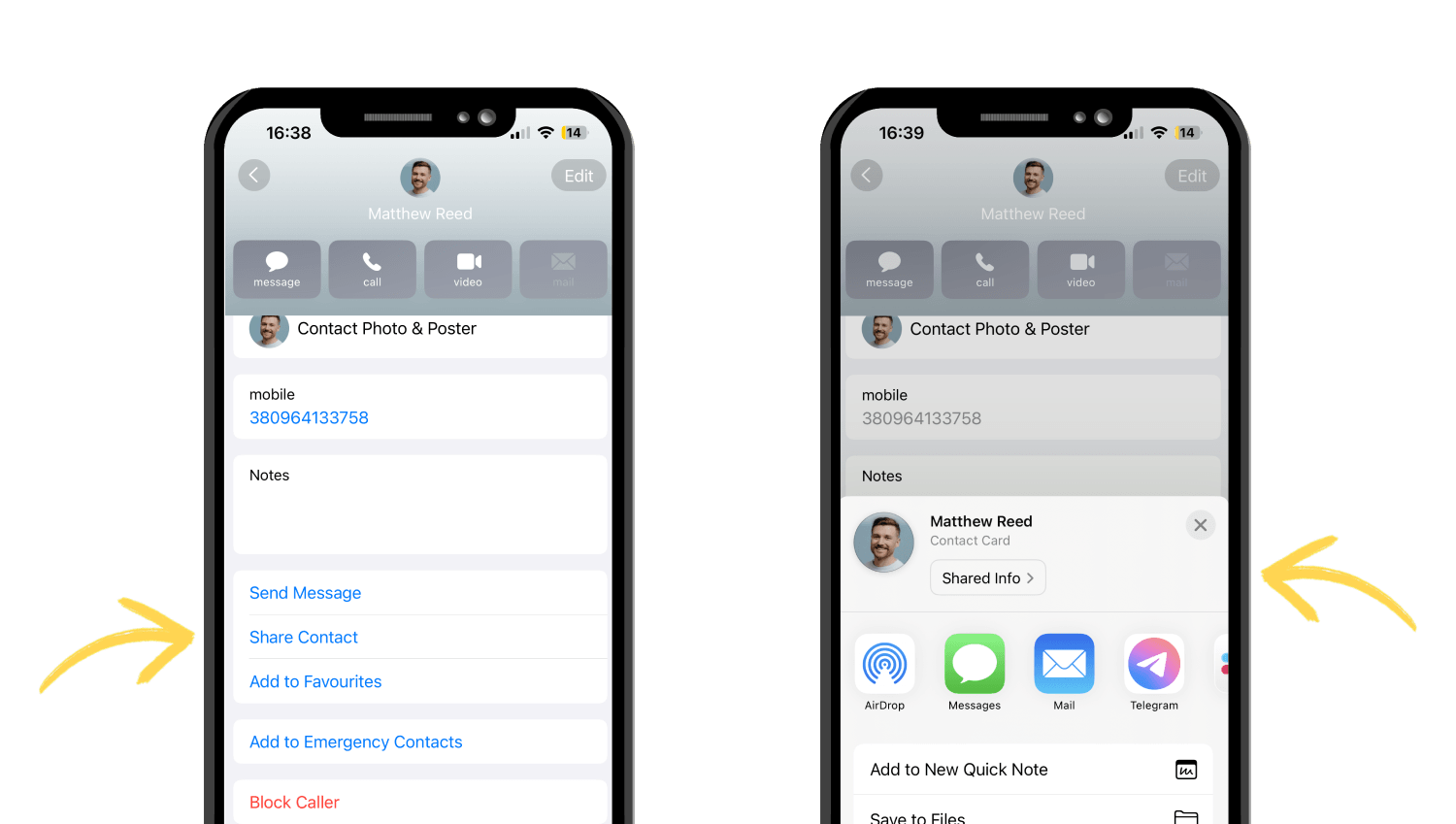
Your contact is shared as a vCard (VCF), which the recipient can open and save to their contacts.
This gives you a basic iPhone digital business card without installing an additional app. However, it mainly works as a digital contact file. If you need a branded contact page, QR code, analytics, or more control over how your information is presented, a digital business card app is a better option.
How to Create a Digital Business Card on iPhone with an App
Now let’s look at how to create a digital business card with a dedicated app, using Wisery as an example. You can create one in 6 easy steps.
Step 1: Sign Up and Set Up Your Profile
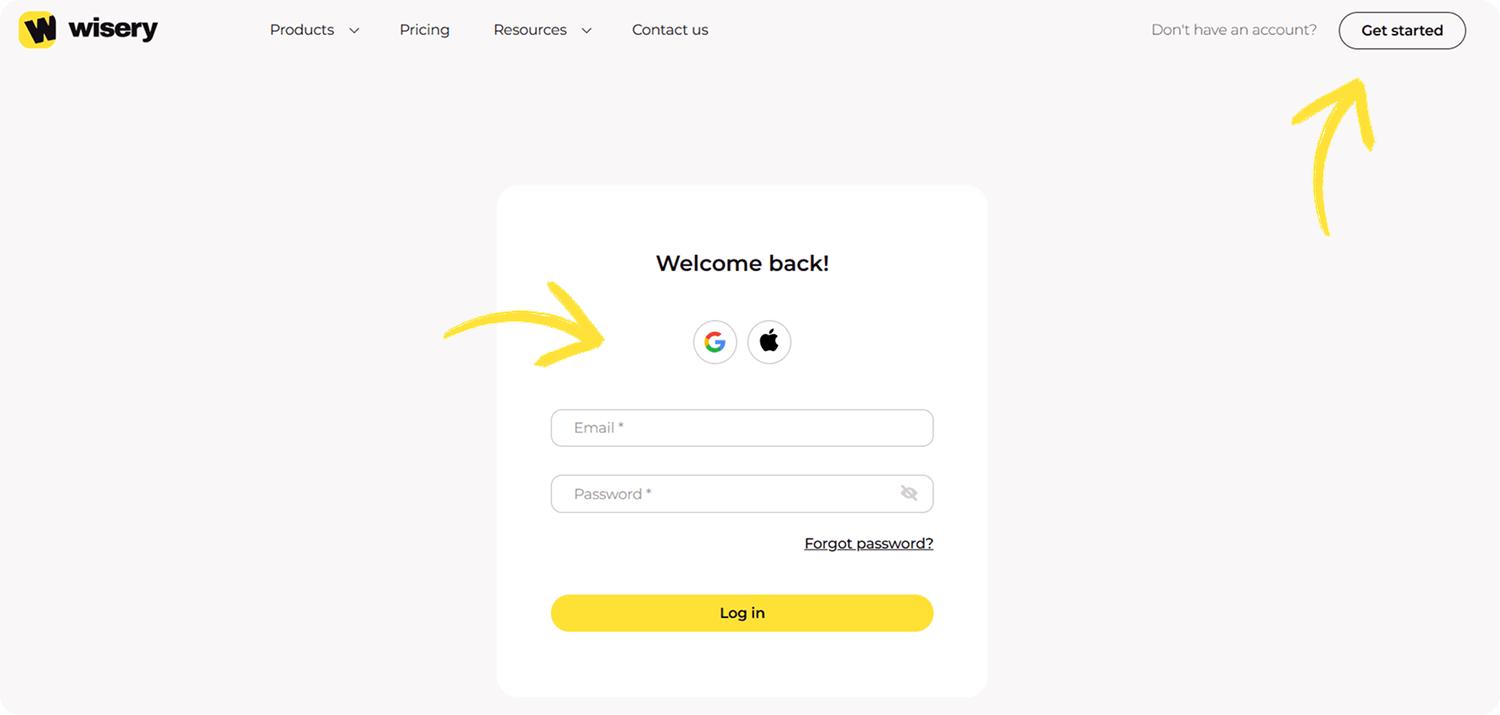
Open the app and sign up. Choose Apple or Google for a fast login — no extra forms are needed. Now let’s set up your profile.
Step 2: Add Contact Information
Start by filling out the Title Header with your job title — “Marketing Manager” or “Freelance Designer.” Then, in the Subheader section, add a brief description like “Helping brands grow online.”
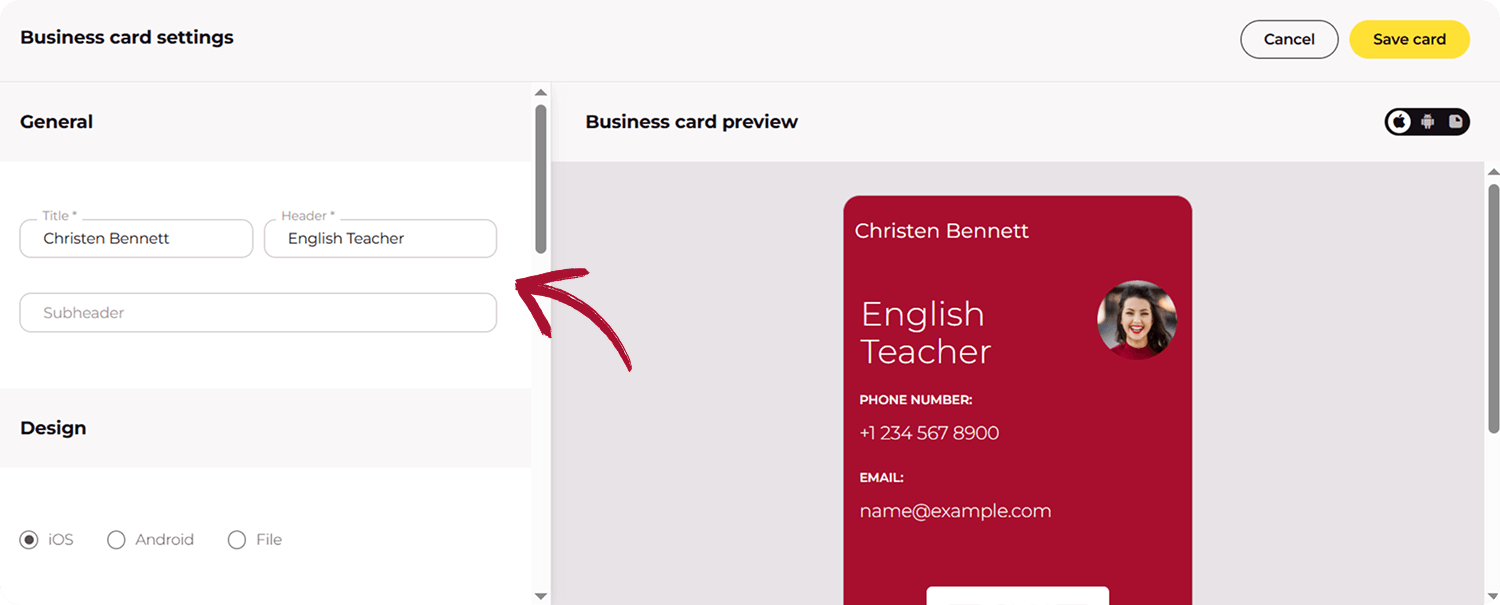
When you create a business card on iPhone, make sure your contact details—phone, email, and address — are included. This ensures your info is easy to share.
Step 3: Customize the Design
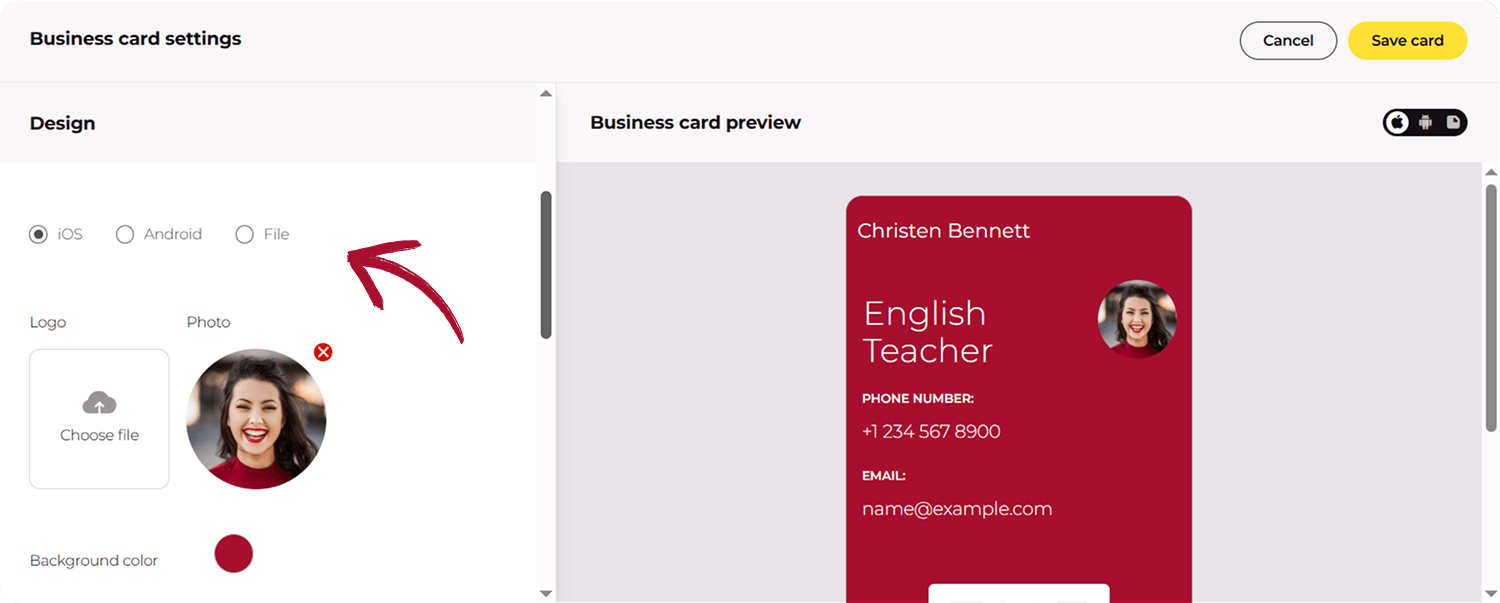
Now, it’s time to make your card stand out. To add a photo or logo, tap the image icon. Then, select the desired picture or logo from your gallery to upload.
Want to change the card’s color? Tap the color palette and pick a hue that matches your vibe or brand. For example, if you’re a creative designer, go for a bold, vibrant color—like a sleek navy blue or a trendy coral.
Step 4: Generate a QR Code or Enable NFC Sharing
Before generating the QR code, choose where it will lead. Pick your QR code type:
-
- Redirect to Page: The QR will redirect to your link-in-bio page, which you can create using the Wisery tool.
-
- Add to Contacts: The QR will let users add your details directly to their contacts.
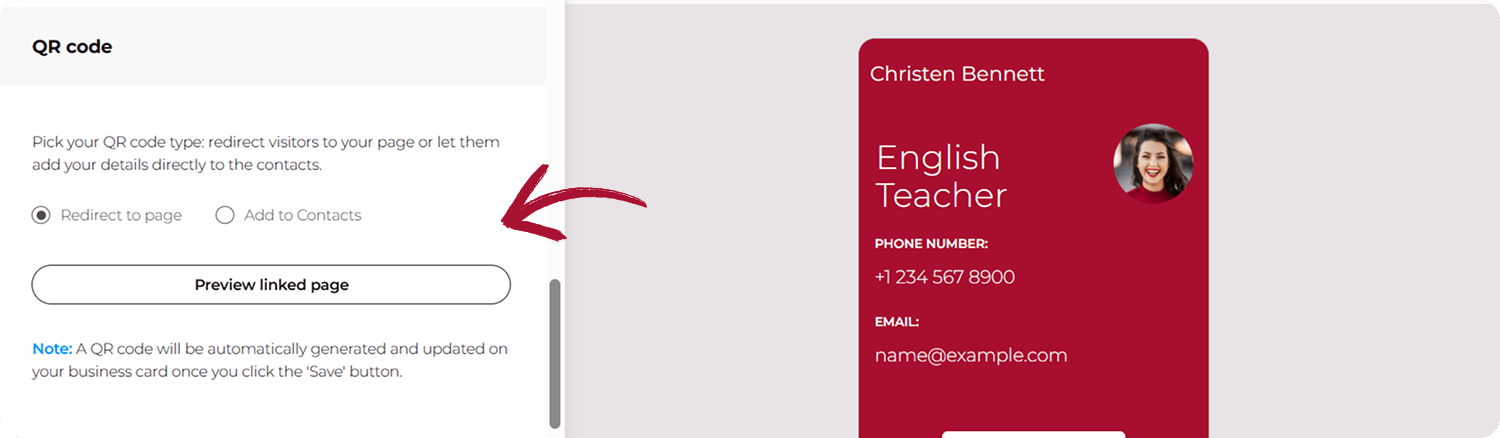
Once selected, Wisery automatically generates the QR code—no extra steps are needed. Just tap the “Save Card” button.
Step 5: Save and Export Your Digital Business Card
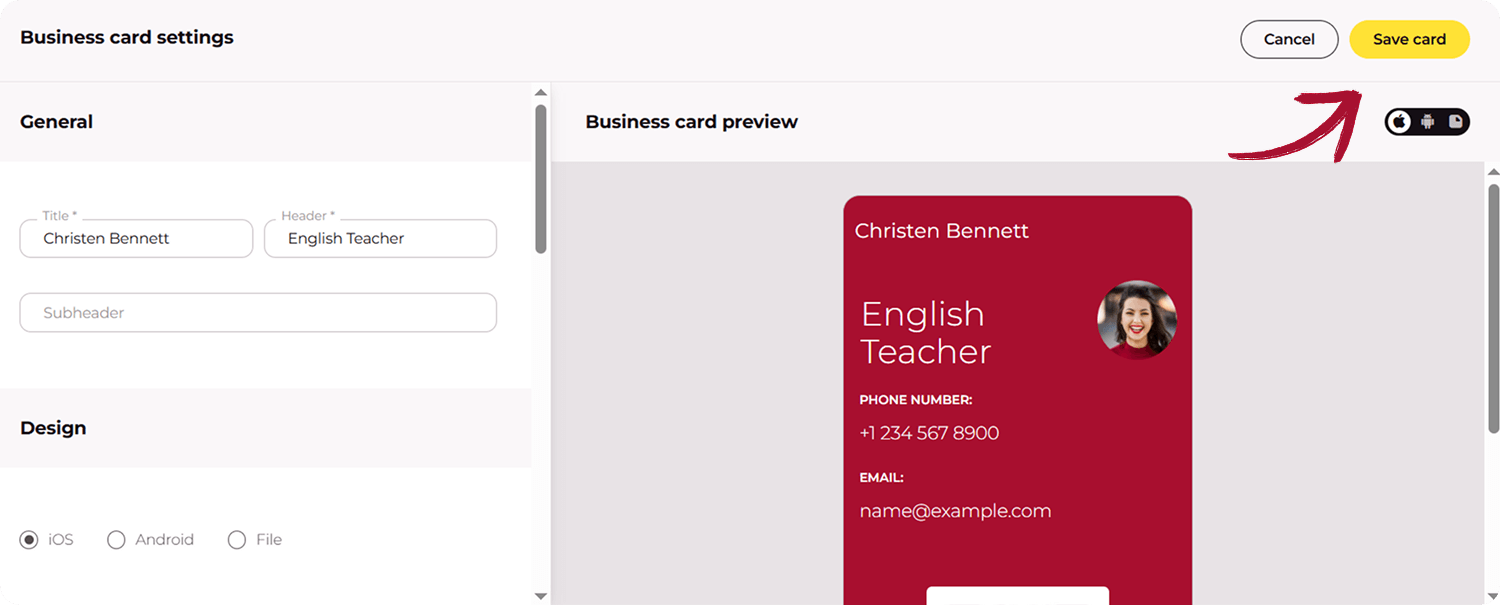
Once you click Save, your card is automatically saved. Now, you need to choose the format you want your card in. You can easily export it in different formats, including a downloadable file. This way, you can share it via email or messaging apps or store it for future use.
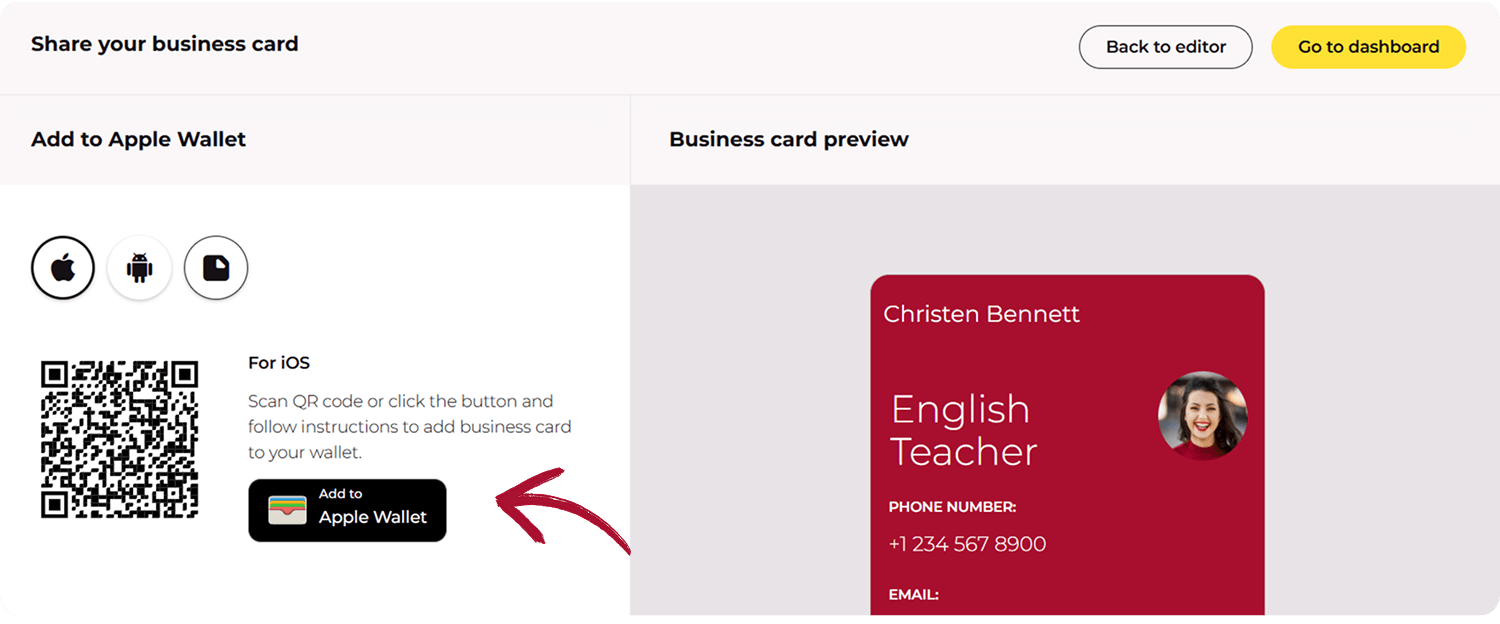
Step 6: Add Business Card to Apple Wallet for Quick Access on Your iPhone
The easiest way to use your card is to save it in an Apple Wallet. Simply click the Save to Apple Wallet button, and your card will be saved directly on your phone.
Bonus: Your card is automatically updated when you make changes, so you never need to re-update it manually.
Start sharing your card and impress your connections. Ready to go digital? Create digital business card iPhone with Wisery today and make networking effortless!
How to Share a Digital Business Card on iPhone
Creating an iPhone digital business card is only the first step. You also need to know how to save and share it in a way that works for different situations. Depending on the card format, you can share an electronic business card with a QR code, NFC card, Apple Wallet, AirDrop, or Messages.
For more options and step-by-step instructions, read our guide on How to Share Your Digital Business Card.
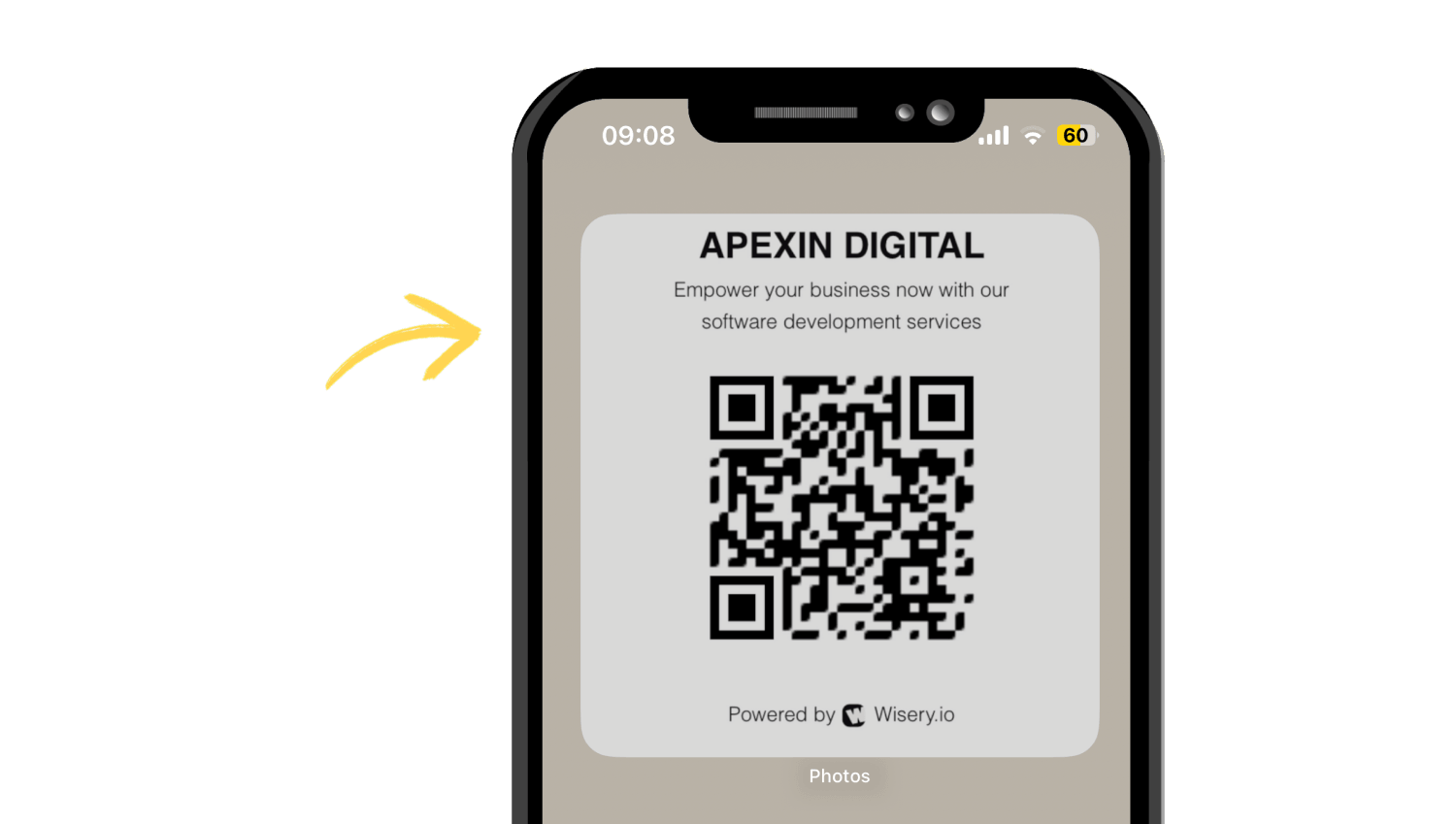
Share With a QR Code
To share your digital business card with a QR code, you first need to create a QR code that links to your digital card. You can generate it on your phone or computer using a QR code generator. Wisery also provides a ready-made QR code for your digital business card.
Share With NFC
An NFC card lets you share your digital business card by tapping a compatible smartphone near the card. The NFC chip contains a link to your online card and opens it when detected.
To use NFC:
- Get an NFC card from a provider that supports programmable NFC cards.
- Add your digital business card link to the NFC card using the provider’s instructions or app.
- Hold the NFC card close to the top of the recipient’s compatible smartphone.
- The phone detects the NFC tag and shows a notification.
- The recipient taps the notification to open your digital card.
- They can then save your contact details.
The NFC card is the physical sharing tool, while your digital card remains online. This makes NFC useful for in-person networking, conferences, and business meetings.
Add a Digital Business Card to Apple Wallet
Apple Wallet can store a wallet pass for quick access to your digital business card. This lets you keep the card on your iPhone and open it without searching for the original link.
If your digital business card service supports Apple Wallet, you can usually add it directly from your card:
- Open your digital business card on your iPhone.
- Look for the Add to Apple Wallet button.
- Tap it to open the Wallet pass preview.
- Tap Add in the top-right corner.
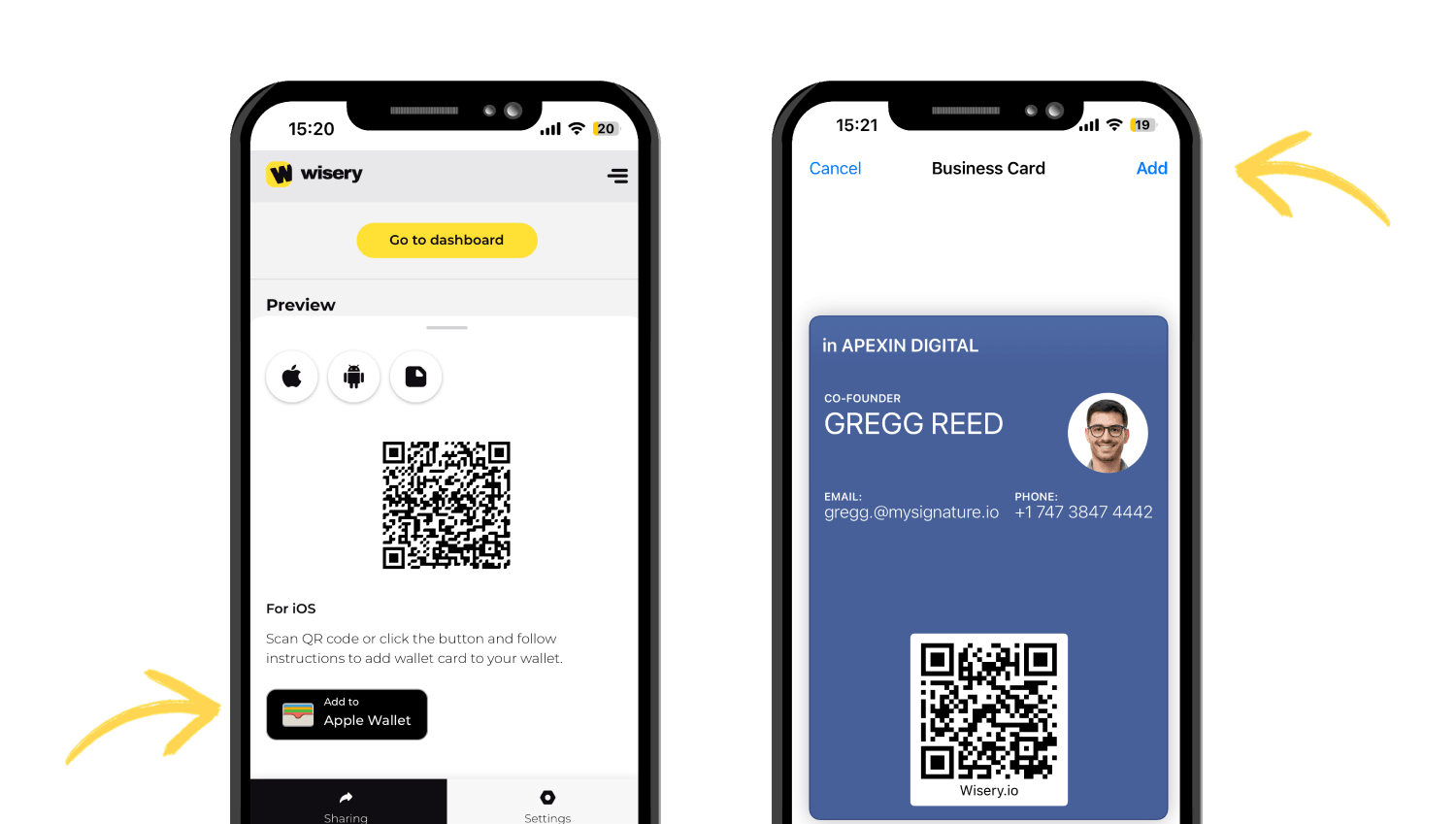
- Open the Wallet app to find your card.
- Tap the pass whenever you need to access your digital business card.
If you want to add your digital business card to Apple Wallet, check out our step-by-step guide to adding a digital business card to Apple Wallet.
Share With AirDrop or Messages
If you have created your card through Apple Contacts, you can share it directly as a vCard using AirDrop or Messages.
To share with AirDrop:
- Open Contacts on your iPhone.
- Select the contact you want to share.
- Tap Share Contact.
- Select AirDrop.
- Choose the nearby person or their Apple device.
- They can accept the contact and save it to their Contacts.
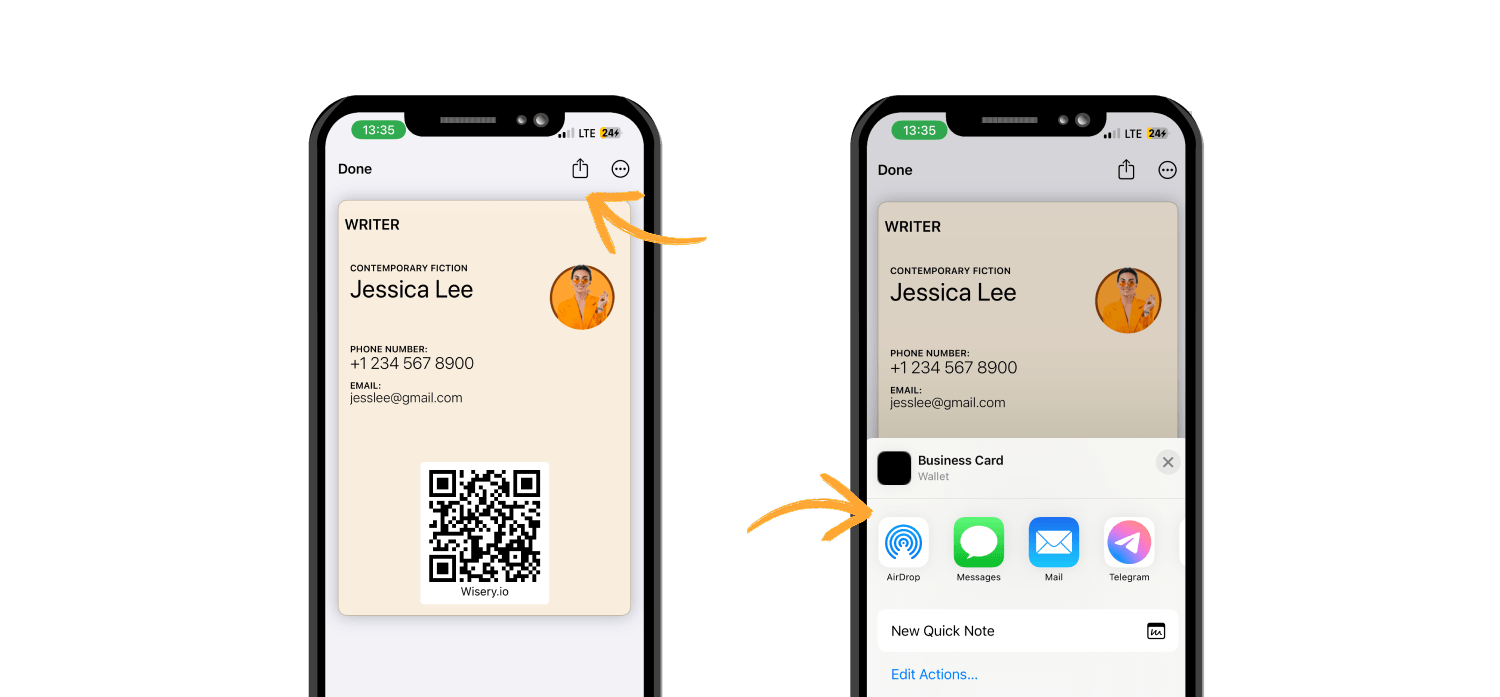
AirDrop works well when you’re physically near the person and both devices support it.
To share with Messages:
- Open Contacts.
- Select your contact.
- Tap Share Contact.
- Choose Messages.
- Select a conversation or recipient.
- Tap the send button.
Compare Digital Business Card Options on iPhone
Not every option below creates a digital business card from scratch. Some help you create the card, while others make it easier to store, access, or share it. Use this table to choose the right digital business card solution for your needs and see how each option can help you collect and share contact information.
|
Method |
Creates the card? |
Best for |
Pros |
Cons |
|
Digital business card app |
Yes |
Professional networking |
Full profile, branding, always up to date, contact collection |
Requires a service |
|
vCard |
Yes |
Basic contact sharing |
Free, native, simple |
Limited branding and features |
|
Apple Wallet |
No |
Quick access to a saved card |
Convenient on iPhone |
Not a full card creation method |
|
QR code |
No |
Fast contactless sharing |
Easy to scan, works across devices |
Requires a card or page to link to |
|
NFC card |
No |
In-person networking |
Tap to share, quick access |
Requires NFC hardware |
Key iPhone Features You Can Use With a Digital Business Card
Beyond creating and sharing your card, iPhone features can help you access, manage, and use it more easily in everyday situations.
- AirDrop
Use AirDrop to send your card link or contact directly to someone nearby. It’s especially useful when you introduce yourself at a meeting, conference, or networking event.
- Siri
Use Siri to open your digital business card with a voice command. This can be helpful when your hands are busy or you need to access your card without searching through your iPhone.
- Shortcuts
Create a Shortcut that opens your card with one tap. To set one up, open the Shortcuts app, tap +, choose Add Action, search for your digital business card app or URL, and add your card link. 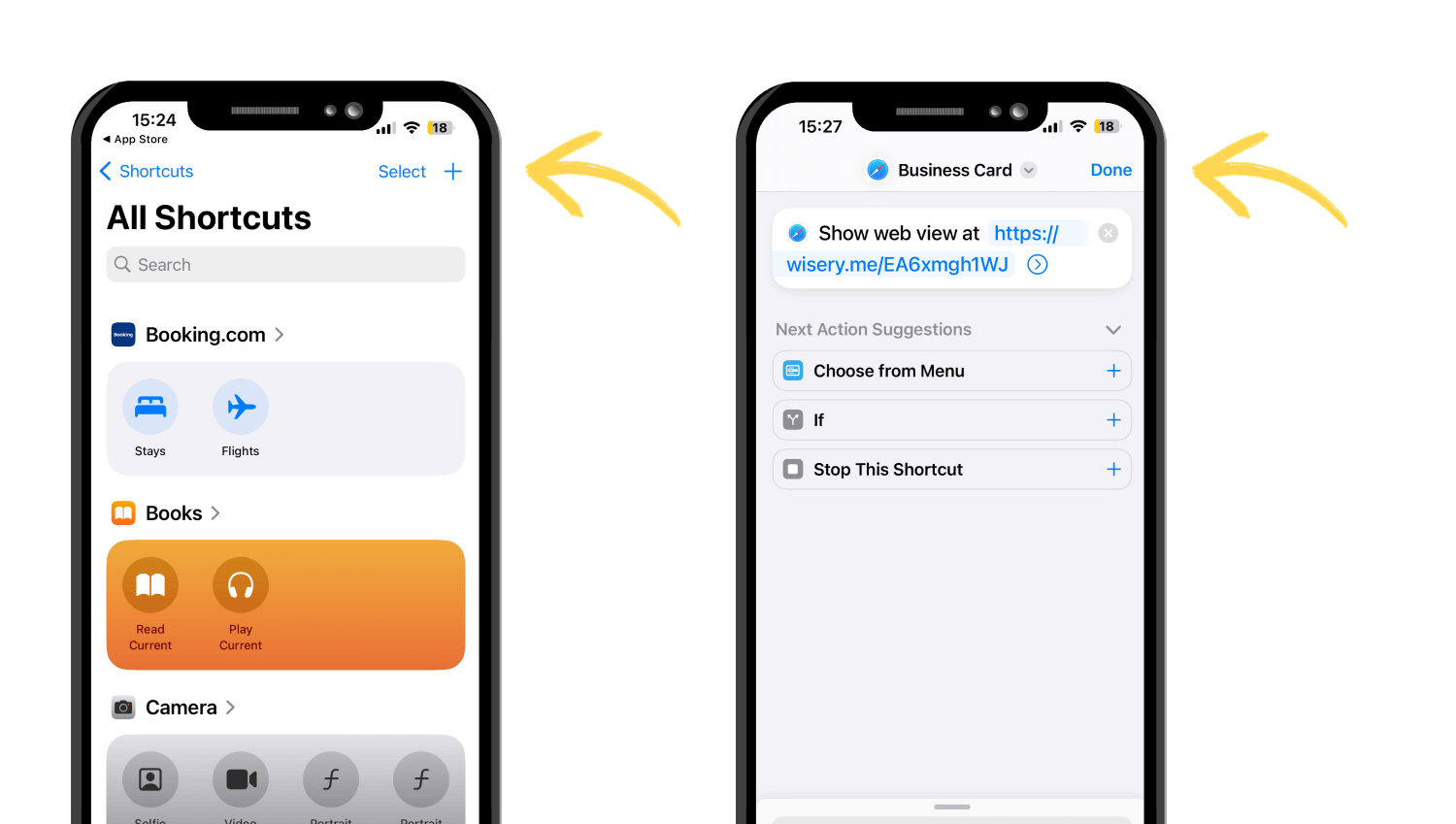
Give the Shortcut a name, then add it to your Home Screen for quick access. You can also use Shortcuts to automate simple actions, such as opening your card before a meeting or event.|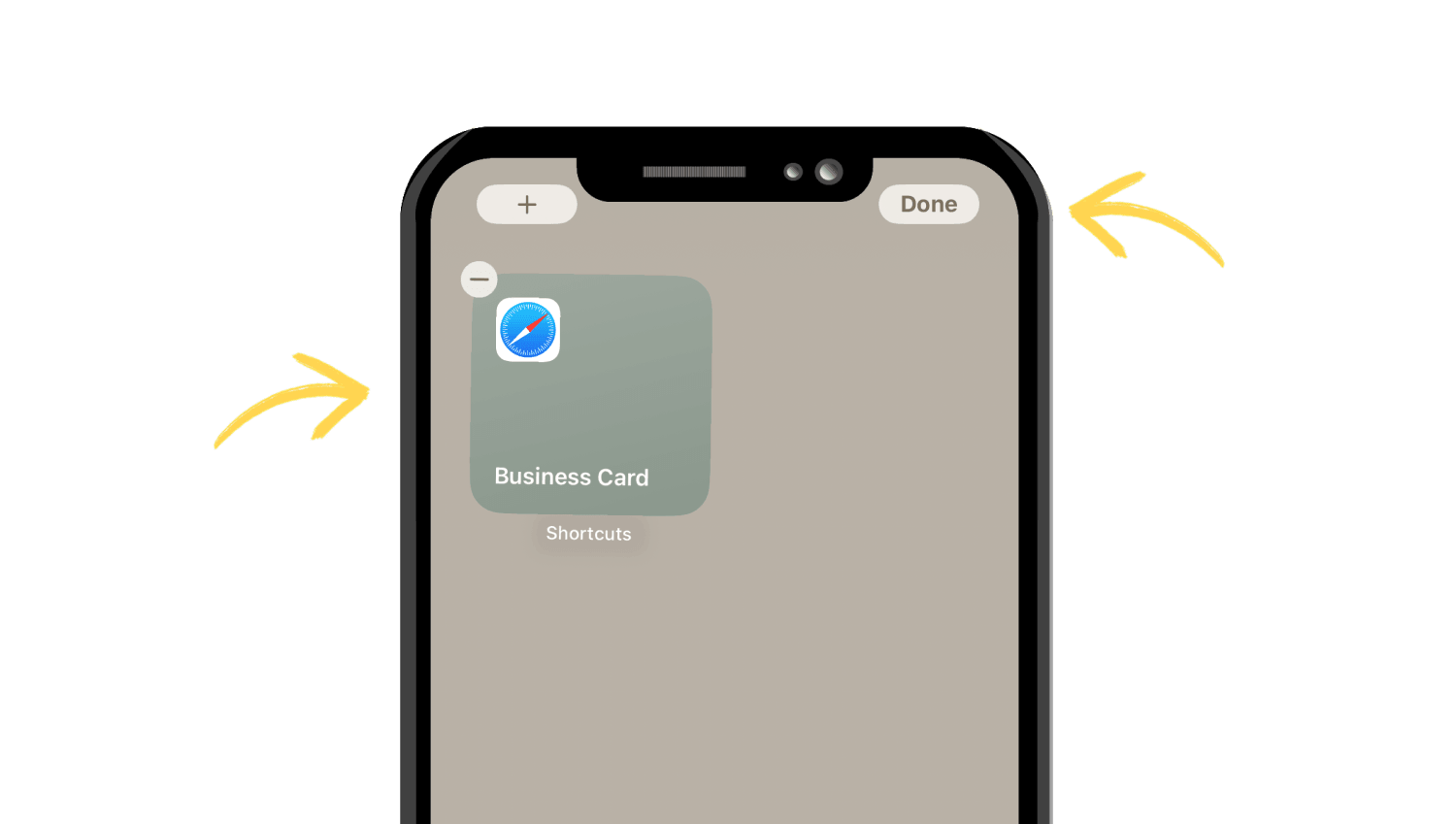
- Share Sheet
The iPhone Share Sheet lets you send your card through Messages, Mail, or another supported app. It gives you a quick way to manage different sharing options from one place.
Electronic Business Card Security and Privacy
Security matters because a digital business card can contain personal and company information that is shared externally. A secure digital business card solution should give you control over what appears on the card, who can edit it, and how collected contact data is handled.
Control What You Share
Only include information you are comfortable sharing publicly on your digital business card. If you use a card for work, keep company details accurate and avoid adding unnecessary personal information.
Protect Contact Data
If your card includes lead capture or contact collection, check what information is collected, where it is stored, and who can access it. A reliable service should provide clear privacy practices, secure data transmission, and appropriate access controls.
Keep Your Information Up to Date
One advantage of a digital card is that you can update your information without creating a new card. Check your name, job title, email, phone number, links, and other details regularly so people always see accurate information.
FAQ
How do I make a digital business card on my iPhone for free?
You can create a basic digital contact card for free using Apple Contacts and share it as a vCard (VCF). For a more complete digital business card with a contact page, QR code, and additional features, you can use a digital business card app that offers a free plan.
How do I share my digital business card with a QR code on iPhone?
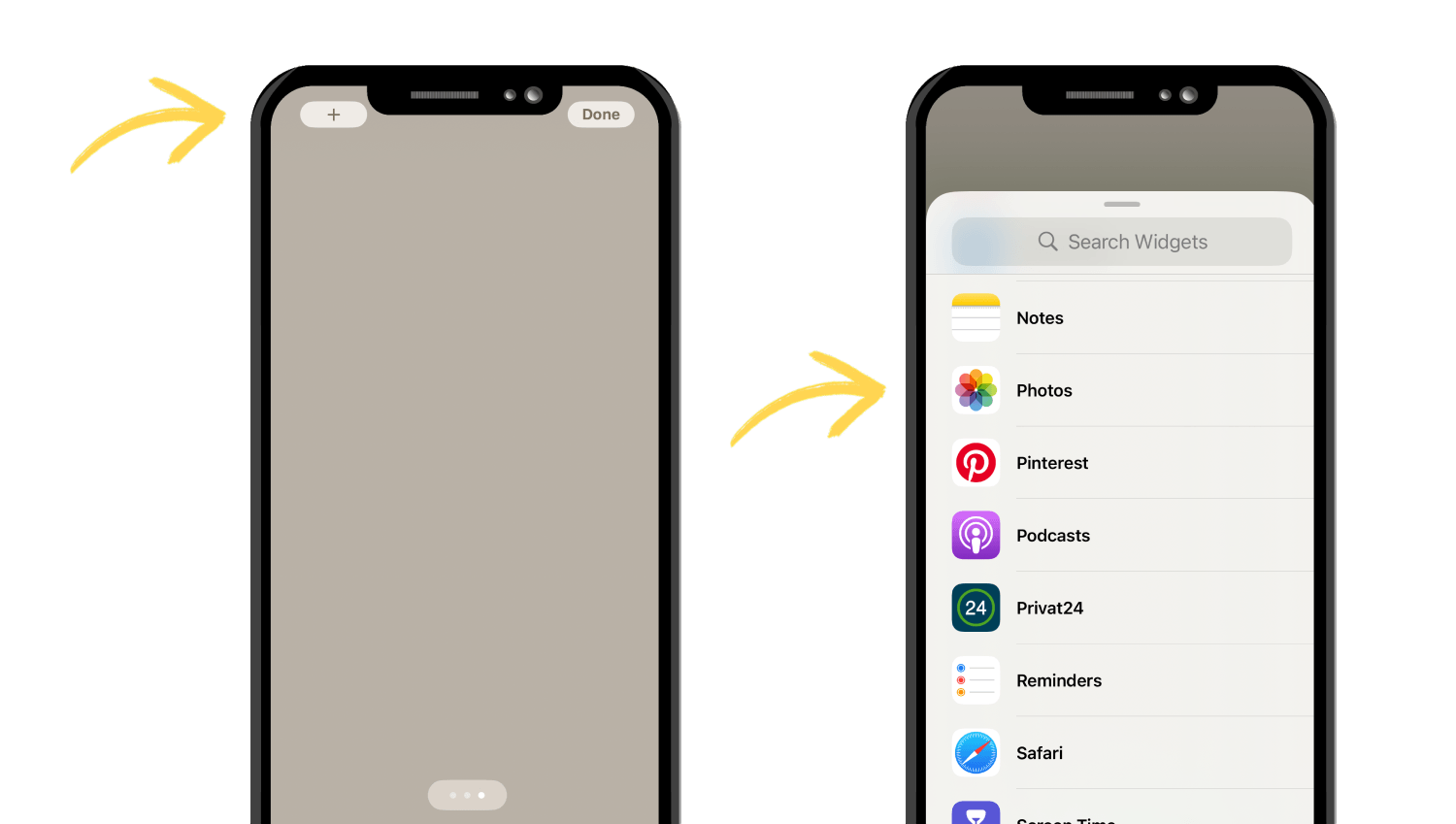
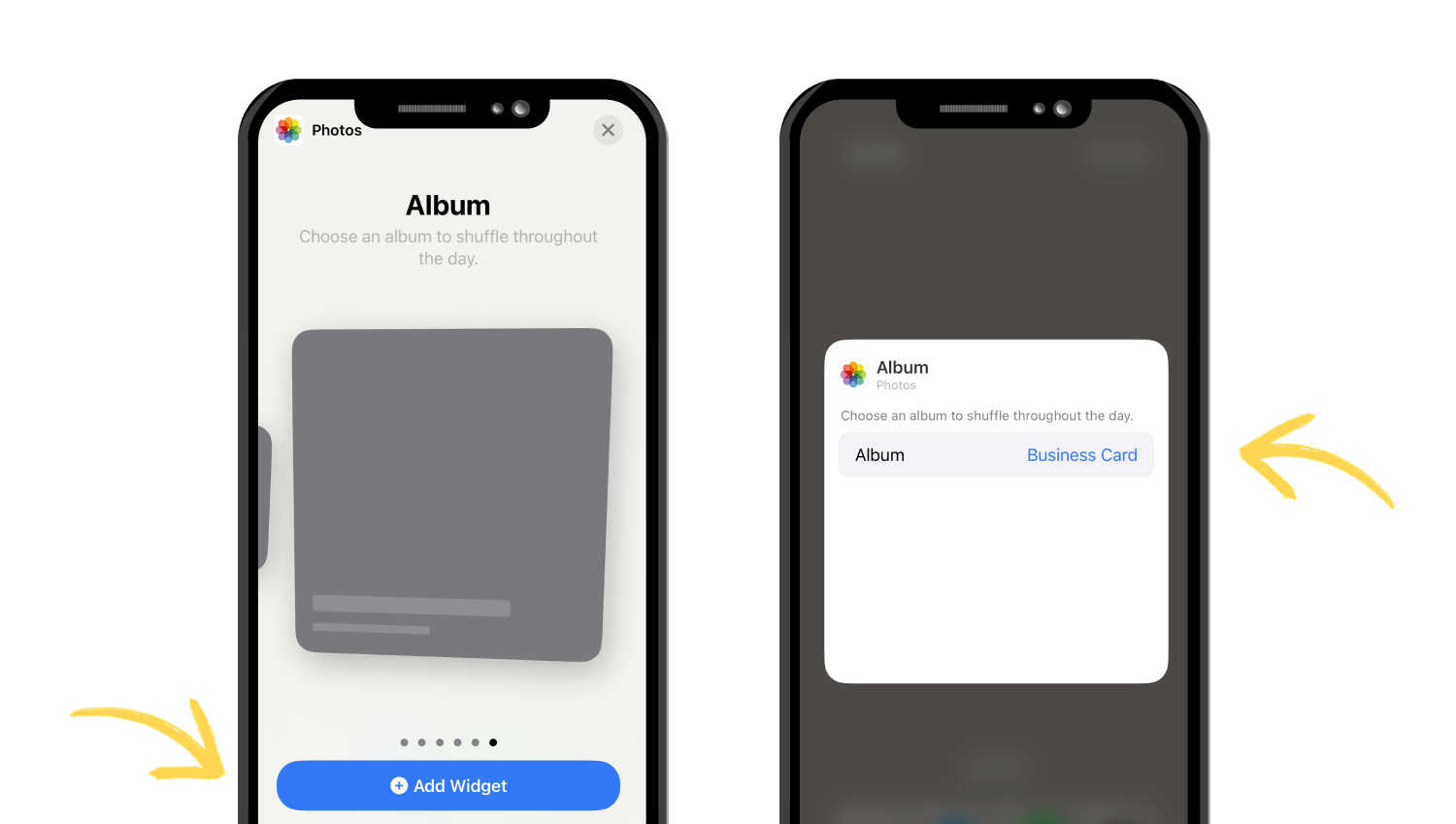
First, create a QR code that links to your digital business card. You can display it on your iPhone and let the other person scan it, or save the QR code for quick access through a widget.
Does iPhone support NFC business cards?
Yes. iPhones can interact with compatible NFC tags and cards. An NFC card can contain a link to your digital business card, allowing someone to open your contact page by bringing their compatible smartphone close to the card.
What is the best digital business card app for iPhone?
The best option depends on what you need. For an all-in-one digital business card app, Wisery is a strong choice, with features such as a branded contact page, QR code sharing, lead capture, and easy updates.
Can I update my digital business card after sharing it?
It depends on how the card was shared. If someone saved your details directly to their Contacts app, changes you make later will not update the saved contact on their phone. However, if you shared a link to an online digital business card, you can update the information on the card, and the changes will appear when they open the same link again.
Can someone save my digital card to their contacts?
Yes. If your digital card provides contact-saving options, the recipient can add your details to Apple Contacts or another contacts app. A vCard / VCF file can also be saved directly as a contact.

Danylo is a marketing professional with a strong interest in developing effective, results-driven strategies for modern businesses. As a Marketing Manager at Wisery, he focuses on improving communication, strengthening brand presence, and optimizing digital channels such as email marketing and customer engagement. With a practical, hands-on approach, he is passionate about turning complex marketing concepts into clear, actionable insights that businesses can easily apply.